CapCut vs Filmora: Which Video Editor Is Better?

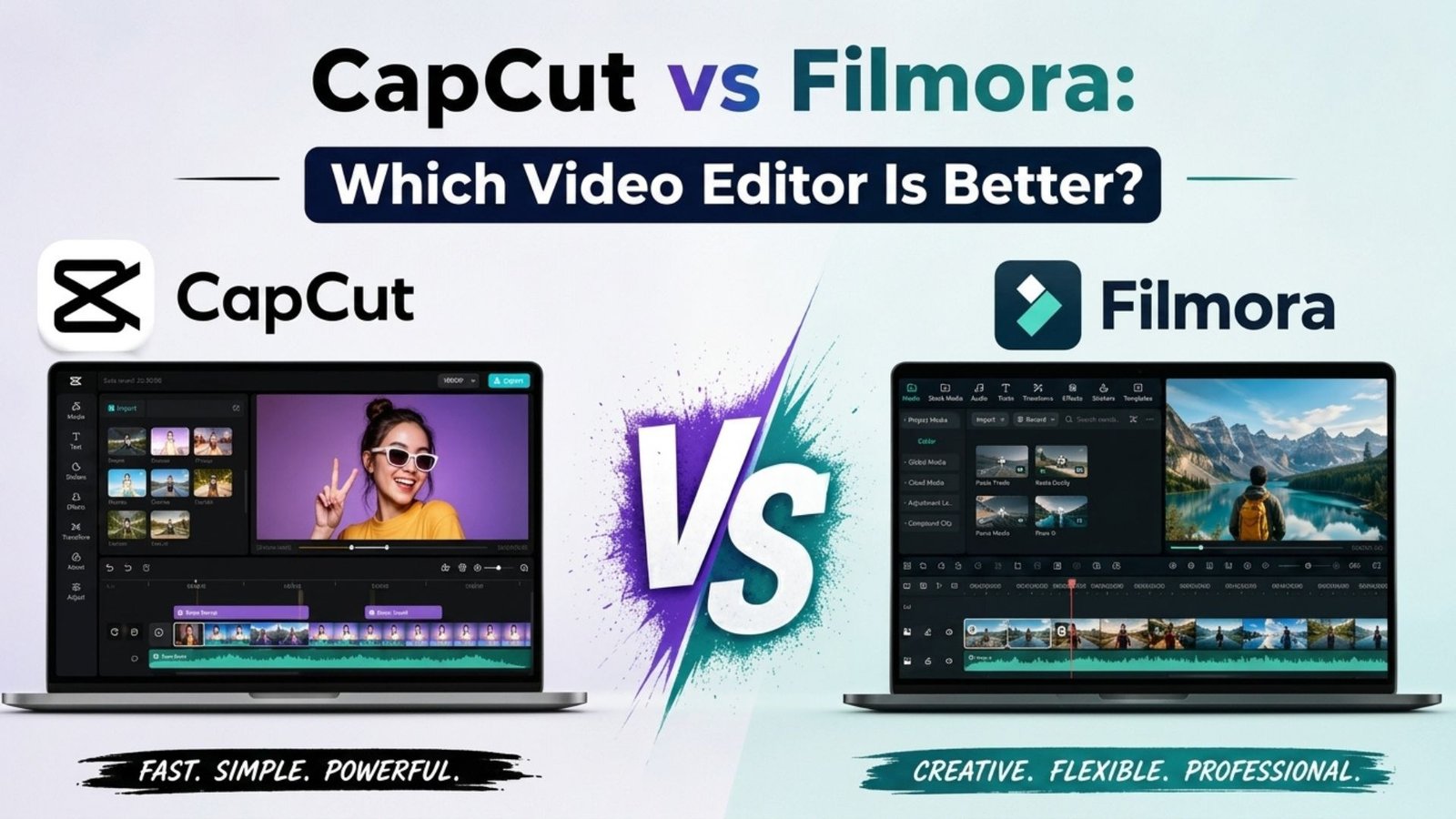
Selecting the right video editor can have a major impact on your content creation workflow. This CapCut vs Filmora comparison looks at two of the best video editing softwares for content creators.
CapCut is perfect for fast social-media content, including TikTok videos, Reels, and YouTube Shorts.
Filmora offers a structured desktop workflow with advanced editing, audio, AI, and creative features.
So, which one should you choose?
In this CapCut vs Filmora comparison, let’s explore their key differences and find out which video editor is best for your needs.
1. CapCut vs Filmora: Quick Overview
Let’s start with a quick overview of CapCut and Filmora. Both offer beginner-friendly editing, AI features, templates, effects, captions, and audio tools, but they focus on different content styles.
What Is CapCut?
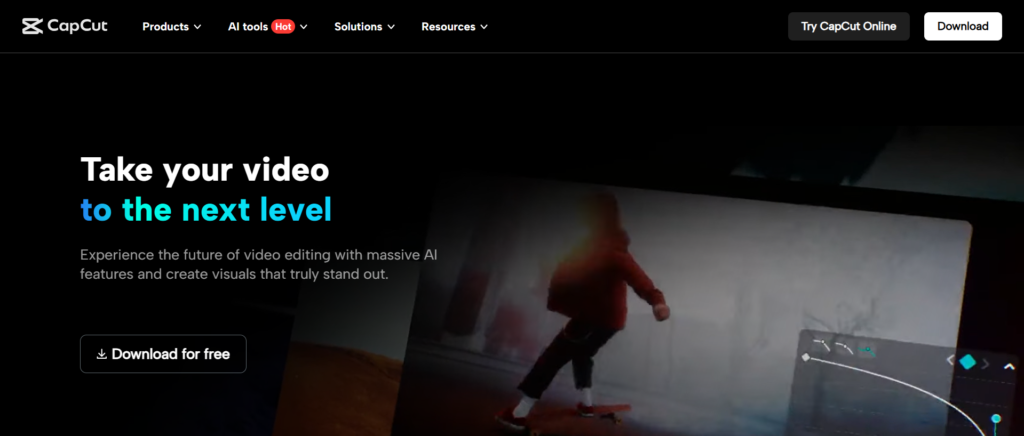
CapCut is a beginner-friendly video editing platform that combines simple editing tools with powerful AI features. Available on mobile, desktop, and web, it is especially popular for TikTok, Instagram Reels, and YouTube Shorts.
Key features include:
- Auto Captions
- AI Tools
- Auto Cut
- Templates and Effects
- Text-to-Speech
- Keyframe Controls
- Auto Reframe
- Color Grading
What Is Filmora?
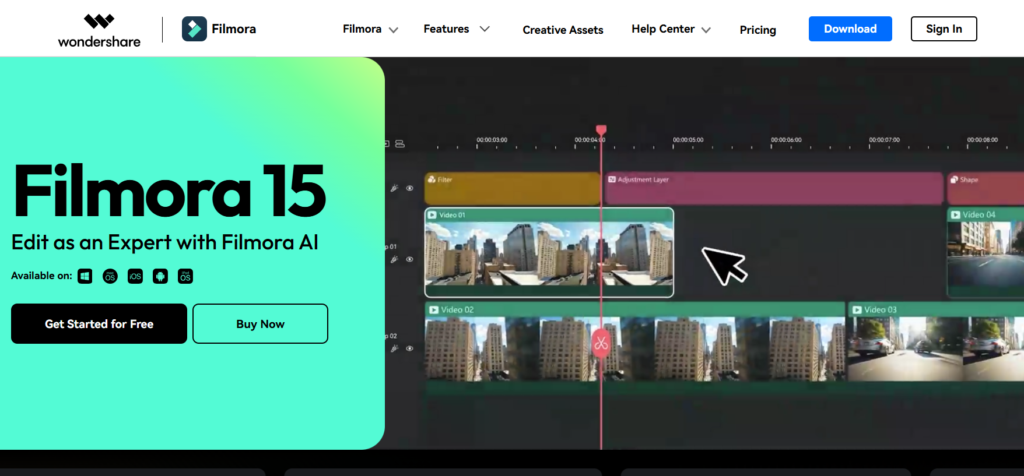
Filmora, created by Wondershare, is a beginner-friendly video editing solution built for creators who want powerful tools without a complicated workflow. It is ideal for creating YouTube videos, tutorials, product reviews, courses, and engaging long-form content.
Key features include:
- Professional Timeline Editing
- AI Tools
- Creative Effects and Transitions
- Captions and Titles
- Audio Editing
- Color Correction
- Keyframes
- Screen Recording
- Creative Assets
- 4K Video Editing
2. Ease of Use and User Interface
For new editors, an easy-to-understand interface can save time and reduce frustration. Both CapCut and Filmora are designed to make video editing accessible to beginners.
CapCut Ease of Use
CapCut is built around a simple and fast editing workflow. Its mobile interface is excellent for TikTok, Reels, and Shorts, while ready-made templates help users create videos with minimal effort. A typical workflow looks like this:
- Create a project and import your video clips.
- Arrange the clips on the timeline.
- Trim, split, and clean up the footage.
- Add text, captions, effects, and transitions.
- Add music or sound effects, preview the result, and export.
Filmora Ease of Use
Filmora uses a more traditional desktop editing layout, This organized layout is easy to understand and can be a good foundation if you want to develop more advanced desktop editing skills. with tools such as:
- Media Library and Preview Window
- Timeline and Editing Controls
- Effects, Transitions, and Titles
- Audio Editing and Creative Tools
Note: CapCut is ideal for quick edits and social-media content, while Filmora is better suited to creators looking for a classic desktop editing workflow.
3. CapCut vs Filmora: Pricing and Plans
Pricing is an important factor when choosing a video editor, especially for beginners and creators working with a limited budget. Both CapCut and Filmora offer free options, but their paid plans, features, and purchasing flexibility are different.
CapCut Pricing
CapCut offers both free and paid options, making it accessible to beginners and more advanced creators. The free version covers basic editing, while CapCut Pro unlocks premium tools and features.
Include CapCut Free Plan:
- Basic video editing
- Trim and split tools
- Text and captions
- Effects and transitions
- Audio editing
- Templates
- Standard exports
CapCut Pro Plan
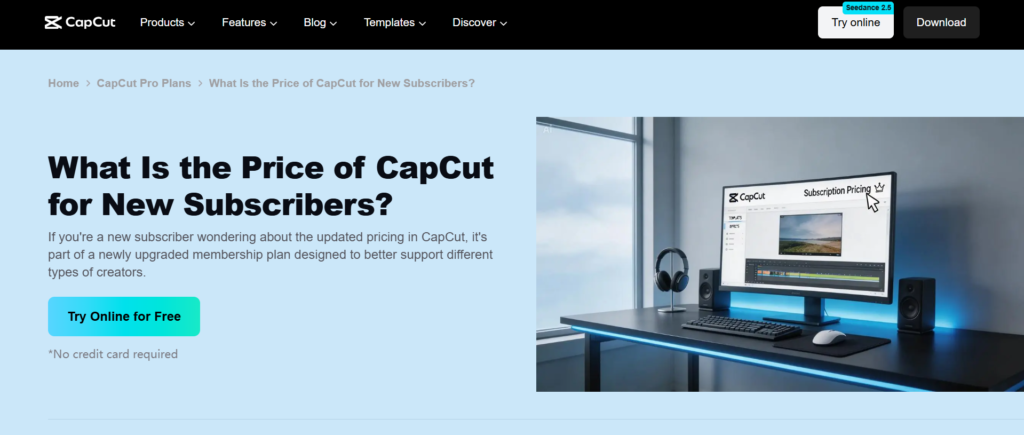
CapCut Pro is available on monthly and annual subscriptions. The monthly price is currently around $19.99, although the final price can vary.
Include Capcut Pro Plan:
- Premium templates and effects
- Advanced AI tools
- Premium text features
- Cloud storage
- Advanced editing tools
- Higher-quality exports
- Watermark-free exports where applicable
Filmora Pricing
Filmora offers a free plan that gives beginners a chance to try its core editing features. For users who need more advanced capabilities, the software provides monthly, annual, and perpetual purchasing options.
The free version allows you to try features such as:
- Timeline editing
- Trimming and splitting
- Effects and transitions
- Titles and captions
- Audio editing
- Basic creative tools
Filmora Paid Plans
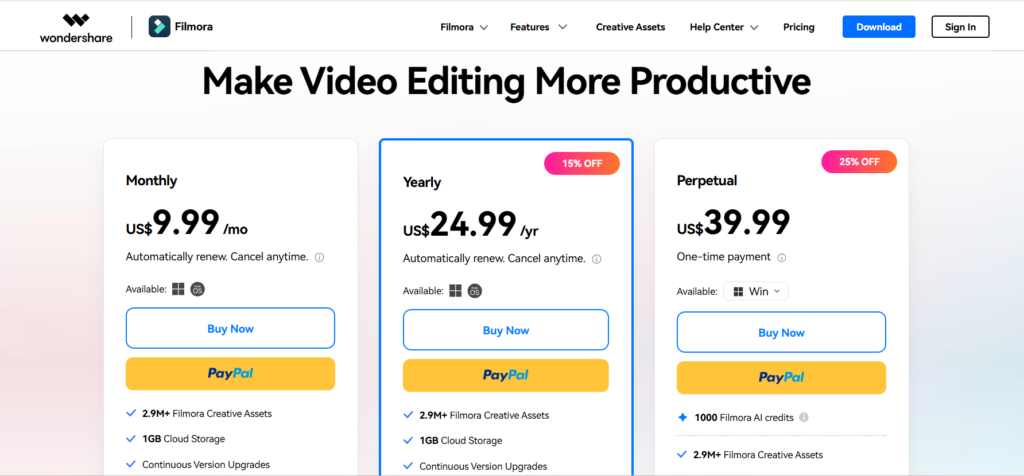
Filmora’s monthly subscription is currently around $9.99 per month. Annual and perpetual plans are also available, with pricing depending on your region and current promotions.
Paid plans can provide:
- Advanced editing tools
- AI-powered features
- Premium effects and transitions
- Creative assets
- 4K video export
- Watermark-free exports
- Cloud storage
- Additional AI features and credits
Overall, CapCut is an excellent option for simple, free, and social-media editing, while Filmora is a better fit for users seeking a more flexible pricing model with a one-time purchase option.
4. Video Editing Features (Semrush vs Filmora)
Both CapCut and Filmora offer the essential tools needed for modern video editing. The main difference is how they approach the editing experience.
CapCut Editing Features
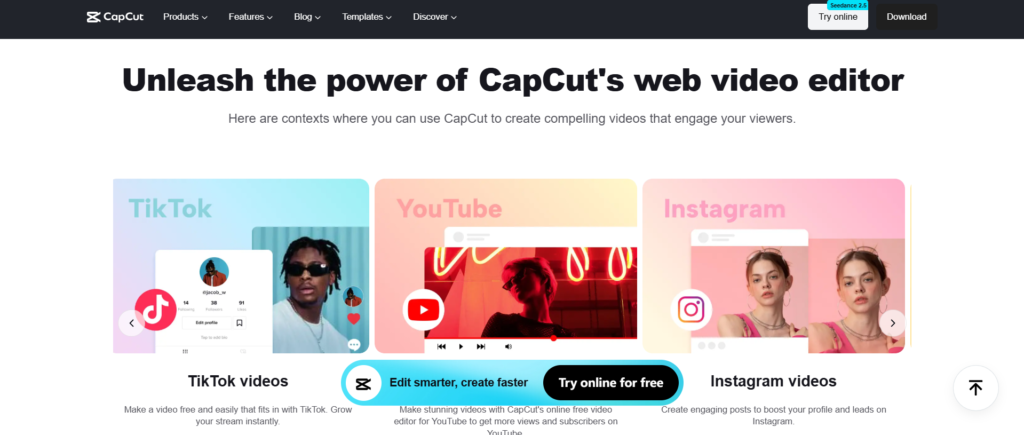
CapCut is designed for creators who want to edit videos quickly without complicated controls. Its key editing features include:
- Trim, split, merge, and adjust video speed
- Add filters, effects, transitions, and color adjustments
- Use text, captions, keyframes, and video reframing
- Edit audio, remove backgrounds, and customize aspect ratios
Filmora Editing Features
Filmora provides a structured desktop editing workflow with a strong selection of modern editing features.
- Trim, split, and organize clips on multiple tracks
- Add transitions, effects, titles, captions, and motion effects
- Adjust colors, edit audio, and remove backgrounds
- Use AI features and export videos in multiple formats
Note: CapCut is excellent for quick social-media editing, while Filmora has the edge for creators who want a more structured and traditional desktop editing experience.
5. AI Video Editing Tools (Semrush vs Filmora)
AI-powered editing can save time and simplify tasks that would otherwise require manual work. Both CapCut and Filmora offer modern AI tools, making them strong choices for creators.
CapCut AI Features
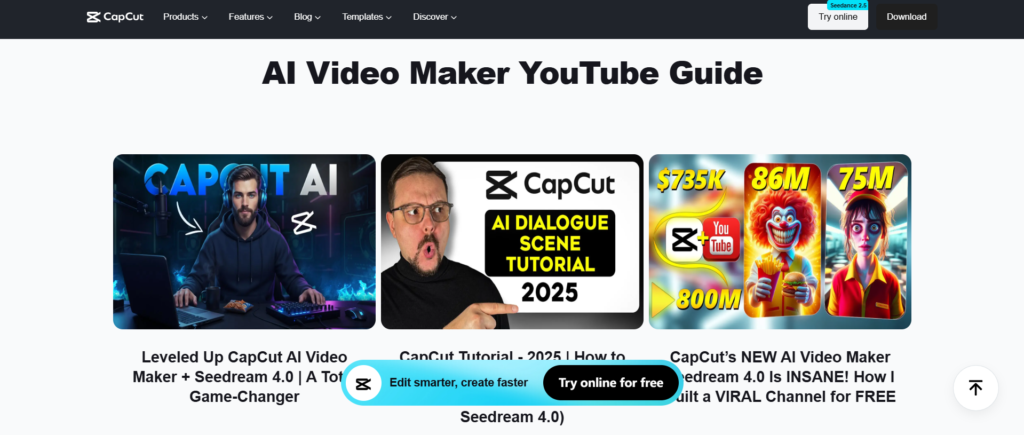
CapCut offers a wide range of AI tools for quick and automated content creation:
- Auto Captions
- Auto Cut
- Script to Video
- AI Writer
- Text to Speech
- Remove Filler Words
- Smart Search
- Auto Reframe
- AI Presenter
- Background removal
- AI-assisted content creation
Filmora AI Features
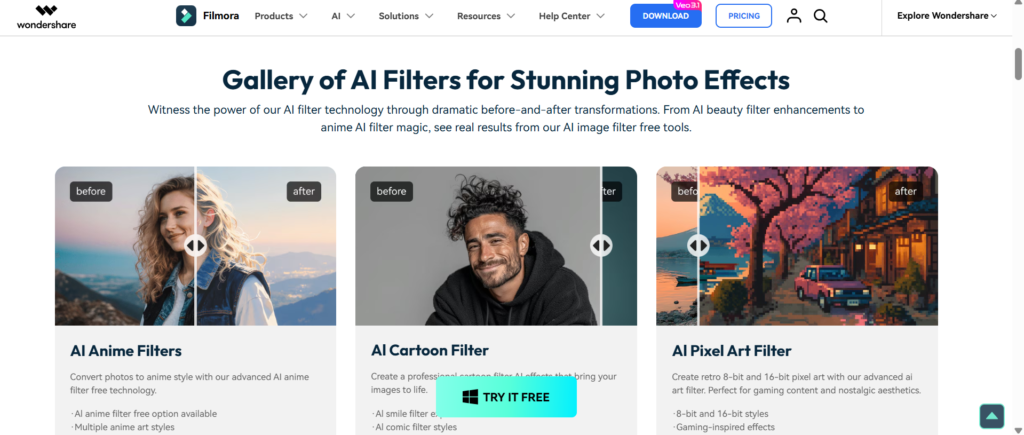
Filmora offers AI tools designed to complement its traditional desktop editing experience.
- AI text-based editing
- Speech-to-text
- Text-to-speech
- AI Music
- AI Video Enhancer
- Smart Short Clips
- Smart Scene Cut
- AI Copywriting
- AI-assisted creative tools
CapCut takes the lead for social-media-focused AI editing, while Filmora is a strong option for traditional desktop workflows with AI assistance.
6. Effects, Filters, Transitions, and Templates
Both editors provide plenty of creative tools, so you can enhance videos without creating every element from scratch.
CapCut Is Better If You Want:
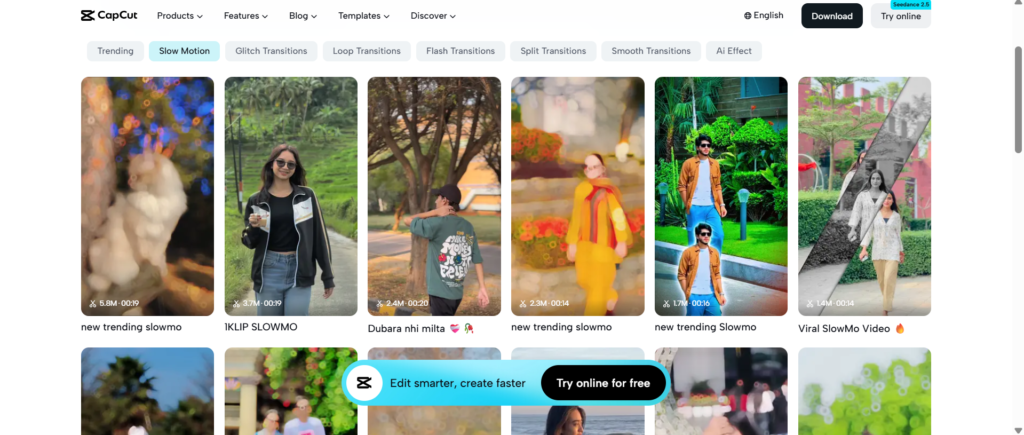
- Trendy social-media effects
- Ready-made templates
- Fast transitions
- Text animations
- Stickers and filters
- Music-based effects
Filmora Is Better If You Want:
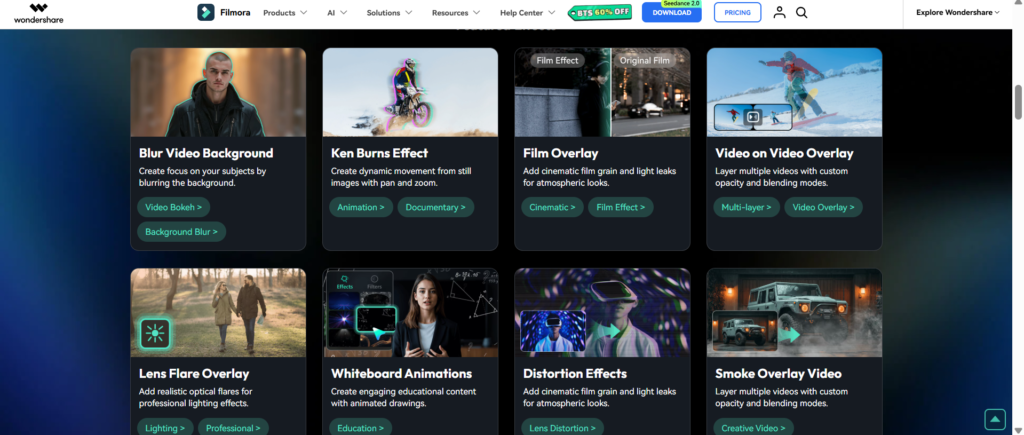
- Traditional effects and filters
- Professional-looking transitions
- Titles and motion elements
- Stock media and templates
- Music and other creative assets
Overall, both tools are excellent choices, and the better option ultimately depends on your content style and editing needs.
7. Text, Captions, and Subtitles (Capcut vs Filmora)
Adding captions can make videos easier to follow and more engaging. CapCut and Filmora both support automatic captions with options to customize their appearance and timing.
CapCut Captions
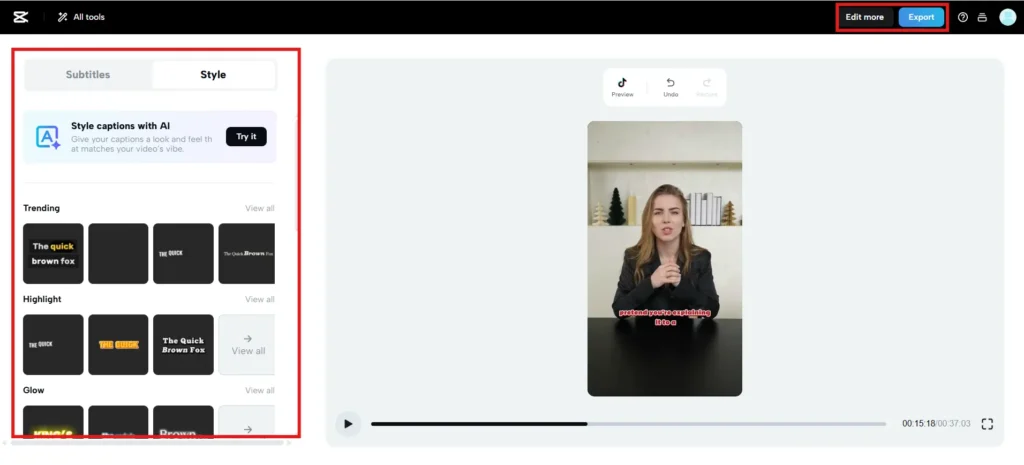
With CapCut, you can automatically generate captions and then customize them to fit your video. Manual editing is also available when the automatic transcription needs corrections.
To add captions:
- Import your video and access the caption tools.
- Choose Auto Captions and select the language.
- Generate captions and check the transcription.
- Edit mistakes and customize the caption style and timing.
- Preview and export your video.
Filmora Captions
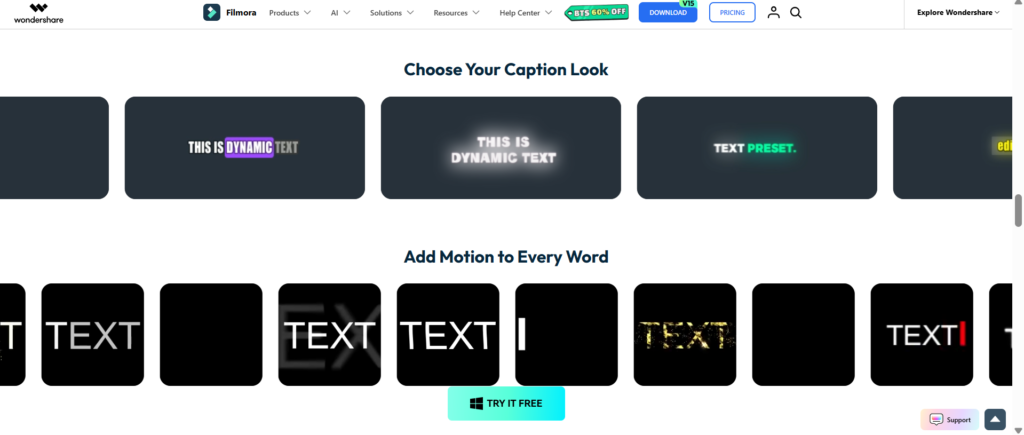
Filmora’s speech-to-text feature can quickly turn spoken audio into captions. You can edit the generated subtitles and adjust their appearance, placement, and timing.
You can change:
- Font and size
- Color and position
- Animation
- Timing
- Caption style
Overall, CapCut is better for dynamic captions, while Filmora suits traditional desktop editing.
8. Audio and Music Editing
Both CapCut and Filmora offer strong audio-editing capabilities for modern video creators.
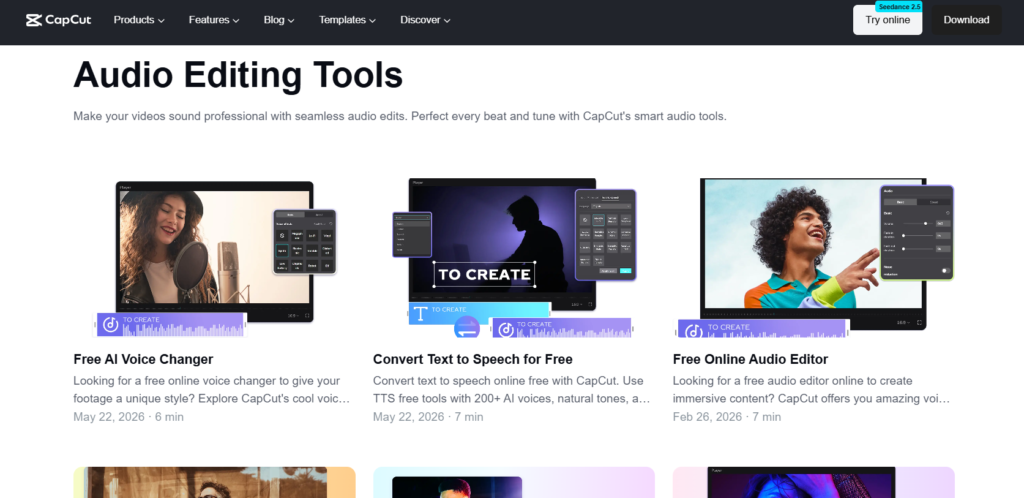
- CapCut: Best for quick audio editing, music synchronization, beat-based edits, voiceovers, and social-media content.
- Filmora: Best for structured desktop audio editing, multiple tracks, voiceovers, and AI-assisted audio tools.
Both are excellent choices for YouTube, tutorials, social media, and general video production.
9. CapCut vs Filmora for YouTube Videos
If You create YouTube content regularly, your editor needs to handle everything from raw footage to the final export. Both CapCut and Filmora can manage this workflow.
CapCut is especially useful for:
- YouTube Shorts
- Vlogs
- Talking-head videos
- Quick tutorials
- Social-media content
- Promotional videos
Filmora is better suited to:

- Long-form YouTube videos
- Tutorials
- Educational content
- Screen recordings
- Product reviews
- Business videos
Overall, Filmora gets a slight edge for traditional YouTube production, while CapCut is the stronger choice for Shorts.
10. CapCut vs Filmora for TikTok and Social Media
Social-media creators need to produce engaging videos quickly while keeping up with the latest trends. This is where CapCut really stands out.
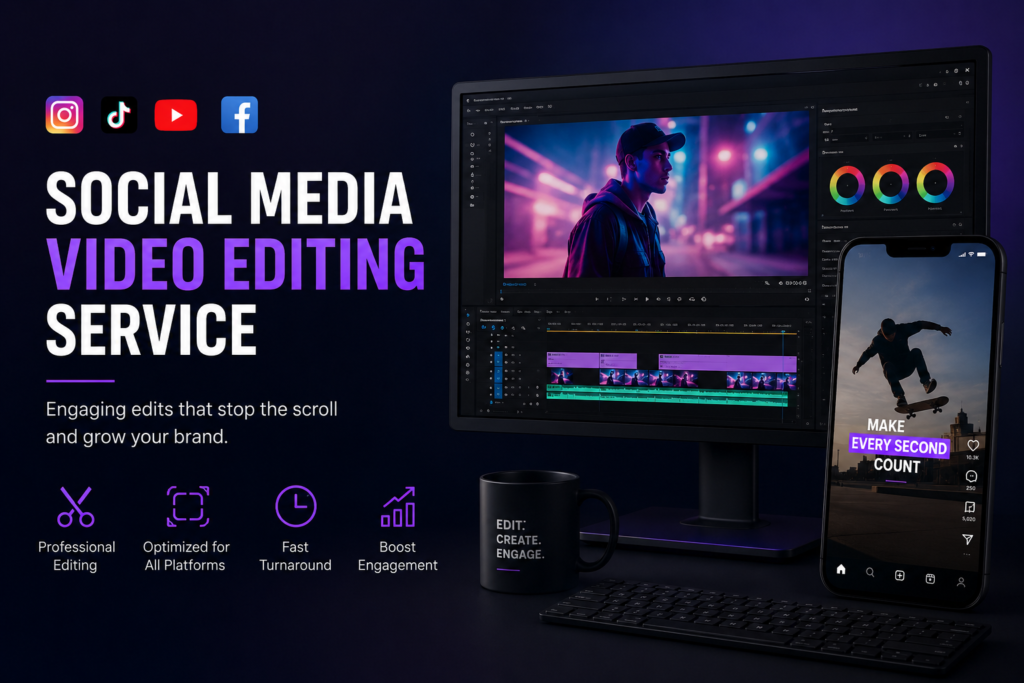
CapCut for Tiktok and Social Media
CapCut is a strong choice for creators who prioritize speed and social-media content. Its templates, effects, captions, music tools, and AI features help create engaging TikToks, Reels, and Shorts with less manual editing.
The Auto Cut feature can also automate certain edits using supported speech and music-beat inputs.
Filmora for Tiktok and Social Media
social-media content, Filmora provides the tools needed to create TikToks, Reels, and Shorts. Its desktop-focused workflow is particularly appealing to creators who want a more controlled editing experience
For TikTok, Instagram Reels, and YouTube Shorts, CapCut delivers a simple, fast, and social-media-friendly editing experience.
11. CapCut vs Filmora for Beginners
If you’re completely new to video editing, you don’t need complicated professional software. You need an editor that is easy to understand, quick to learn, and flexible enough to grow with you.
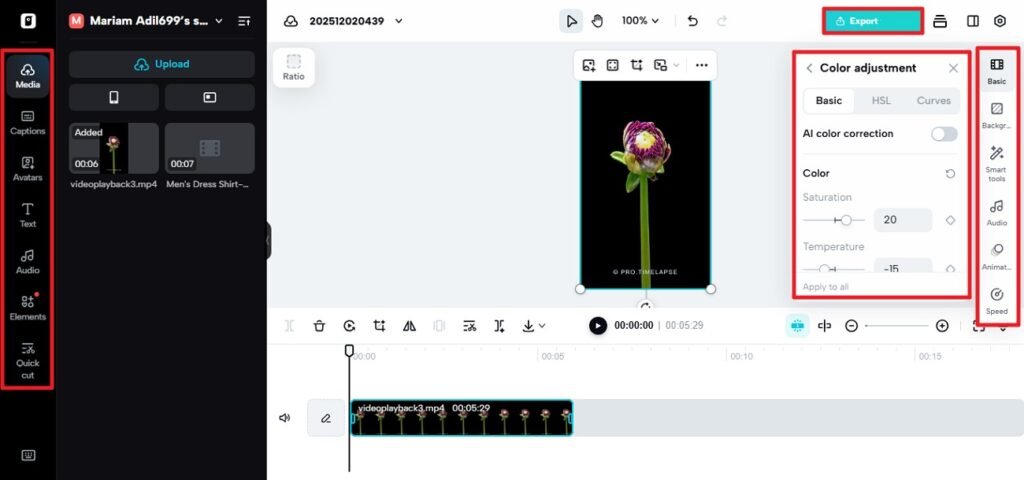
CapCut is especially easy for creating TikToks, Shorts, Reels, and simple YouTube videos. Its templates and AI tools can simplify the editing process.
Filmora offers a more traditional desktop experience, making it useful for beginners who want to learn structured video editing.
Choose CapCut for easy and fast editing. Choose Filmora if you want a more traditional desktop learning experience.
12. CapCut vs Filmora: Pros and Cons
✅Pros of CapCut:
- Easy-to-use interface with a quick learning curve
- Excellent platform for short-form and social-media videos
- Powerful AI tools, automatic captions, and fast editing features
- Extensive library of templates, effects, and creative resources
- Flexible editing options across mobile, desktop, and web
❌Cons CapCut:
- Advanced features are limited on the free plan
- AI credits or limits may apply
- No current lifetime purchase option for Pro
✅Pros of Filmora:
- Easy to use while providing advanced editing capabilities
- Strong timeline editing with useful AI-powered features
- Wide range of creative assets, effects, transitions, and templates
- Excellent choice for YouTube and long-form video production
- 4K export, watermark-free paid exports, and perpetual licensing
❌Cons of Filmora:
- Some AI features require additional credits
- Advanced tools are mostly paid
- Mobile editing is less social-media-focused
13. Which Video Editor Should You Choose?
The best choice depends on what you create, how you edit, and where you publish your videos. CapCut focuses on fast, social-media-friendly editing, while Filmora offers a more structured desktop editing experience.
Choose CapCut If:
CapCut is a great choice if you:
- Create TikToks, Reels, or YouTube Shorts
- Prefer mobile-first editing
- Want automatic captions and AI tools
- Like trendy templates and effects
- Need to create videos quickly
- Are new to video editing
CapCut is the better choice for fast, simple, and social-media-focused video creation.
Choose Filmora If:
Filmora is a better fit if you:
- Create long-form YouTube videos
- Prefer editing on desktop
- Want a traditional timeline workflow
- Create tutorials or educational videos
- Make product reviews and detailed content
- Want to develop stronger desktop editing skills
Filmora is the better choice for structured desktop editing and long-form video production.
Final Takeaway
So, CapCut vs Filmora: which video editor is better? There’s no universal winner—the right choice depends on your content, editing style, and goals.
The Simple Choice
- Choose CapCut for fast editing, social media, and short-form content.
- Choose Filmora for structured desktop editing and longer videos.
If you’re just starting your video-creation journey and mainly want to create Shorts, TikToks, or Reels, CapCut is my overall recommendation.
If you’re building a YouTube channel focused on tutorials, reviews, educational content, or long-form videos, Filmora may be the better investment.