Canva vs Photoshop: Which is Best for Beginners

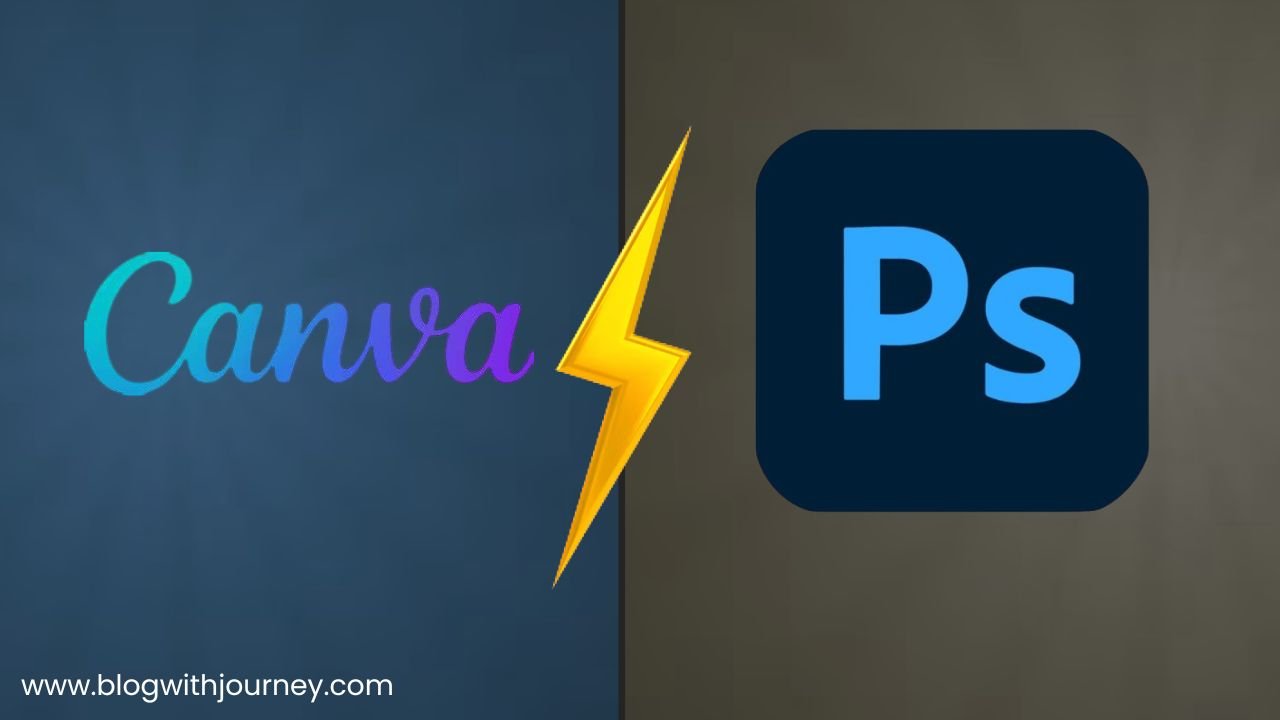
If you’re new to graphic design, the choice between Canva vs Photoshop can feel daunting. Both tools are powerful and widely used. Picking the right one will make your design journey easier and faster.
Today, strong graphic design is critical for anyone online. Students, bloggers, creators, and businesses all benefit from visually appealing designs. Social media posts, thumbnails, and marketing campaigns perform better with high-quality graphics.
When speed and ease matter most, one platform stands out; when control and precision matter, the other takes the lead.
Basic Requirements for Canva
- Runs directly in your web browser
- Performs well even on basic computers
- Create designs on desktop or mobile
- No installation required
Basic Requirements for Photoshop
- Requires powerful system specifications
- Installed directly on your device
- Industry-standard professional software
- Ideal for advanced photo editing and complex designs
In this complete guide, we’ll compare Canva vs Photoshop in detail. We’ll explore their features, pricing, ease of use, learning curve, and best use cases. By the end, you’ll know exactly which tool is the better choice for beginners in 2026.
1. What Is Canva?
Canva is a cloud-based, drag-and-drop, beginner-friendly graphic design platform that works directly in your browser. It simplifies design with pre-made templates, fonts, images, and one-click editing tools, making it ideal for students, bloggers, and small businesses.
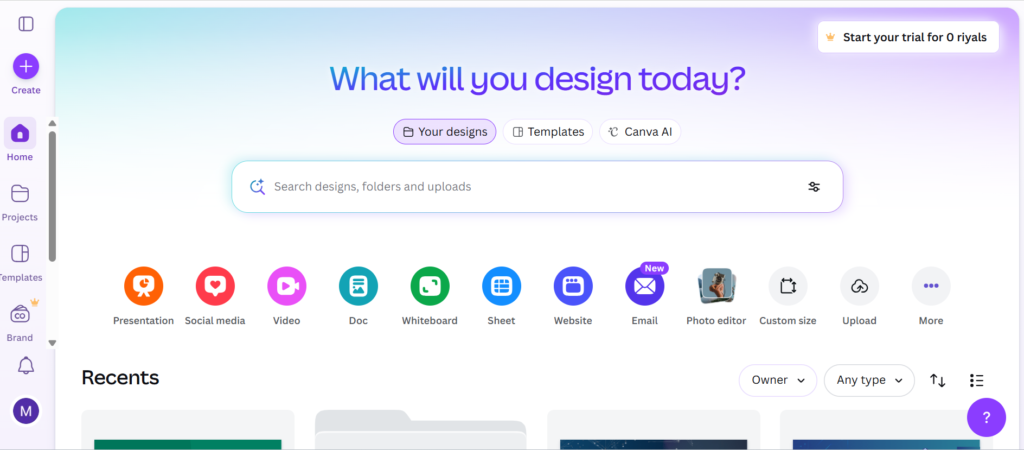
Otherwise traditional design software that requires installation and powerful hardware, Canva runs directly in your web browser. It also offers mobile apps, allowing users to design from smartphones and tablets.
Key Features:
- Drag-and-drop design interface
- 100,000+ ready-made templates
- Social media post and YouTube thumbnail templates
- Built-in stock photos, icons, and graphics
- AI-powered design tools
- AI design tools
- Cloud-based (no installation needed)
Canva is designed for speed and simplicity. You can quickly create social media posts, thumbnails, presentations, logos, and more without advanced skills.
It offers a free plan with plenty of design features. For advanced tools like premium templates, brand kits, and AI features, users can upgrade to Canva Pro.
2. What Is Adobe Photoshop?
Adobe Photoshop is a professional, industry-standard graphic design and photo editing software developed by Adobe Inc. It’s widely adopted by creative experts in photography, design, and marketing around the globe.
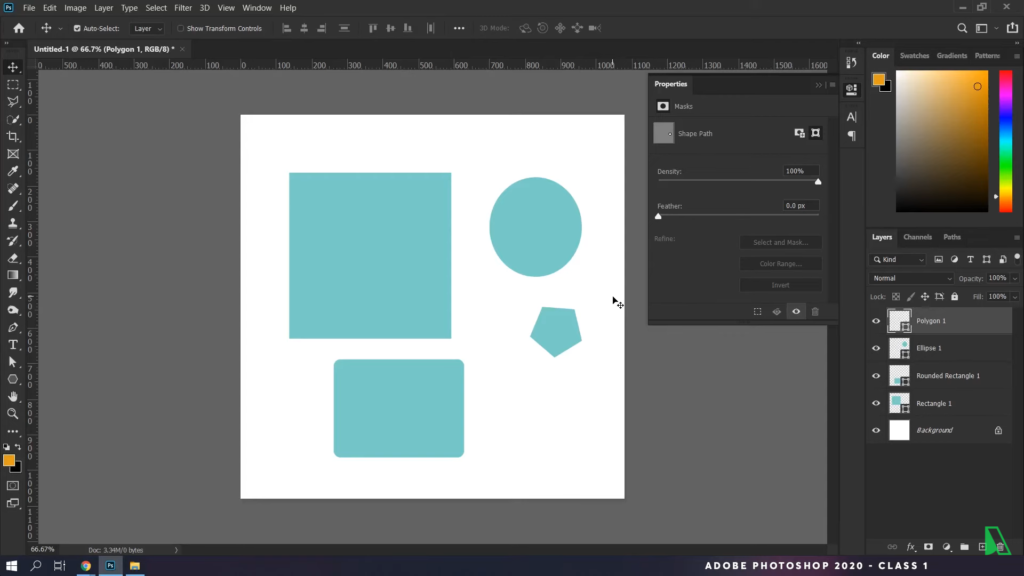
Designed for creative professionals, Photoshop gives users powerful control over images and designs. It works equally well for basic photo fixes and advanced digital artwork.
Key Features:
- Advanced control with layer-based editing
- Complex image manipulation capabilities
- Professional color correction and adjustment
- Smart objects for workflow efficiency
- Customizable brushes for unique designs
- High-quality retouching and enhancement tools
Photoshop is powerful and feature-rich, but beginners often struggle with its advanced tools. Layers, masks, and other professional features take time to master. However, the creative flexibility it offers makes the effort worthwhile.
Adobe Photoshop is best suited for users who want professional-level editing, detailed image manipulation, and full creative control over their designs.
3. Canva vs Photoshop: Quick Comparison Table
| Feature | Canva | Photoshop |
|---|---|---|
| Beginner-Friendly | ⭐⭐⭐⭐⭐ | ⭐⭐ |
| Ease of Use | Very Easy | Difficult |
| Installation Required | No (Web-based) | Yes |
| Templates | 100,000+ | Limited |
| Price | Free + Affordable Pro | Paid subscription only |
| Advanced Editing | Basic editing tools | Professional-level, layer-based editing |
| Best For | Beginners, content creators, marketers | Professional designers, photographers |
4. Pros and Cons of Canva
Pros:
- Beginner-friendly drag-and-drop interface
- Thousands of ready-made templates
- Works online with no installation required
- Affordable pricing with a free plan available
- Fast content creation for social media and marketing
Cons:
- Limited advanced editing features
- Not ideal for complex graphic design
- Some premium elements require a paid subscription
5. Pros and Cons of Photoshop
Pros:
- Industry-standard software trusted by designers worldwide
- Professional-grade editing tools for photos and graphics
- Layer-based workflow for precise control
- Advanced color grading and correction features
- Custom typography and text effects
- High-resolution export for print and digital
- Powerful retouching and manipulation capabilities
Cons:
- Expensive subscription-based pricing
- Requires a powerful computer for smooth performance
- Can be time-consuming for quick social media content
6. Pricing Comparison (Canva vs Photoshop)
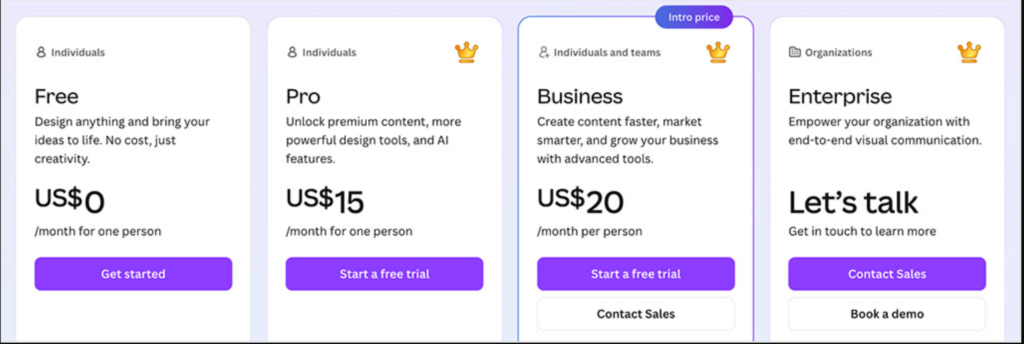
When analyzing Canva vs Photoshop, budget is often the deciding factor. Let’s compare their pricing plans.
Canva Pricing
- Free plan available
- Affordable Pro plan (monthly or yearly)
- Pro Plan: ~$14.99/month for individuals
- Free trial available for Pro features (30 Days)
Adobe Photoshop Pricing
- No free version available
- Plan: ~$19.99/month (Photoshop + Lightroom)
- Part of Adobe Creative Cloud plans
- Higher long-term cost compared to Canva
- 7-day free trial available
If budget is important for you as a beginner, Canva is generally the more affordable option.
7. Ease of Use for Beginners
When comparing Canva and Adobe Photoshop, ease of use becomes a key factor—especially for beginners.
Canva
- Simple drag-and-drop editor
- Instant typography editing
- Automatic size adjustments
- No technical tools required
Even with no design skills, you can create your first social media post or thumbnail in just 5–10 minutes—it’s simple, quick, and easy to use.
Photoshop
- Multiple editing panels
- Requires understanding layers
- Masking, blending modes
- Color balance adjustments
- File formats (PSD, RAW, etc.)
Photoshop offers advanced customization, but users typically need days or weeks to adapt to it.
8. Learning Curve: Which Is Easier to Learn?
Canva makes design easy for everyone. With drag-and-drop tools and ready templates, even beginners can produce professional graphics in minutes. It’s ideal for bloggers, students, and small business owners who need quick results.
- Learn in 1 day
- Master in 1 week
Photoshop offers powerful creative options but is harder to learn. For beginners, mastering layers, masks, and adjustments can take time, which can feel frustrating when producing quick visuals.
- Learn basics in 2–4 weeks
- Master in months or years
If you’re just getting started, speed matters. Canva enables quick, easy designs, while Photoshop is better for users ready to invest hours learning professional tools.
9. Canva vs Photoshop for Social Media
When comparing Canva vs Photoshop for social media, the right tool can make a big difference. Platforms like Instagram and YouTube require fast, eye-catching designs, where speed and consistency matter most.
Why Canva Is Great for Social Media:
- Thousands of ready-made social media templates
- Ready-made templates for Instagram, Facebook, YouTube, and more
- One-click resizing for multiple platforms
- Drag-and-drop editing
- Built-in stock photos, icons, and fonts
- Magic Resize feature (Pro) to adapt one design to multiple platforms
- Easy background remover (Pro feature)
- Works directly in your browser
For beginners, Canva takes the stress out of social media design. No layers, no complex tools—just select a template, tweak the text and images, and your post is ready to go.
Why Photoshop Stands Out:
- Advanced photo retouching
- Custom graphic creation from scratch
- Professional color grading
- High-level image manipulation
- Unlimited creative flexibility
Photoshop is ideal for designers who want unique, highly customized visuals. However, it requires more time, technical knowledge, and a powerful computer.
For regular content creators, Canva makes it easy to produce polished visuals quickly. It’s perfect for beginners and entrepreneurs who want professional designs without learning complicated software.
10. Canva vs Photoshop for Professional Graphic Design
For professional graphic design, the Canva vs Photoshop debate leans strongly toward Photoshop. It provides full control, flexibility, and industry-level editing power.
Photoshop is designed for advanced creative work. It enables detailed photo retouching, full typography customization, and advanced color adjustments . Professional designers rely on it for branding projects, advertising materials, digital art, and complex visual compositions.
On the other hand, Canva focuses on speed and simplicity instead of deep creative control. While it’s excellent for fast designs, it cannot match Photoshop’s advanced editing capabilities.
For professional graphic design, Photoshop is the stronger choice. It requires more time to learn, but it delivers the precision and creative freedom that professionals need.
11. Which Tool Is Better for Content Creators?
If you’re a content creator, your biggest assets are time, consistency, and speed. Also, if you:
- A YouTuber
- A blogger
- An affiliate marketer
- A social media manager
- A freelancer
For most creators, Canva is the more practical option. It’s built for quick content creation and doesn’t require advanced design skills, allowing you to focus on producing and publishing content.
Why Canva Works Best for Content Creators
Canva helps you save time and increase productivity by offering ready-made templates and drag-and-drop editing. You can quickly create:
- YouTube thumbnails
- Channel banners
- Ebooks
- Lead magnets
- Social media posts
- Pinterest pins
- Presentation slides
While Adobe Photoshop excels in advanced editing, it usually requires stronger hardware and deeper design knowledge. Many creators prefer faster tools for consistent publishing.
My Honest Recommendation (Affiliate Guide Strategy)
After comparing Canva vs Photoshop, here’s my honest suggestion for growing your online content and income.
Bloggers and affiliate marketers who want fast and consistent content production will find Canva extremely useful.
Once your brand develops and your design needs become more advanced, tools like Adobe Photoshop can help, but they require practice, patience, and a stronger computer.
Smart Affiliate Strategy
Here’s a practical approach:
- Step 1: Start producing content faster with Canva’s free version.
- Step 2: Choose Canva Pro if you need professional templates, brand kits, and resize options.
- Step 3: Use Photoshop when your creative projects demand expert-level tools.
This strategy keeps your costs low while maximizing productivity and growth.