The 9 Best Screen Recording Software for Online Tutorials (2026)

Many freelancers want to leverage their skills to create online courses, and the first step in this process is choosing the right screen recording software.
It has been specifically designed for freelance YouTubers and online course creators who can earn money by producing screen videos and uploading them to YouTube and various course platforms.
Modern screen recording software includes features such as video editing, AI, webcam recording, and cloud-based sharing, alongside screen capturing capabilities.
To save you time, I have carefully reviewed and selected the 9 best screen recording software options for creating online tutorials.
After reading this article, you will learn about our top recommendations and be able to find the right tool to create high-quality educational videos with confidence.
What Is Screen Recording Software?
Screen recording software helps you create clear, step-by-step video tutorials by capturing everything on your screen. Advanced tools also support webcam recording, voice narration, and system audio for a more interactive learning experience.
By recording directly from your display, screen recording software produces clear and detailed videos. This allows viewers to easily follow every action from start to finish.
Many screen recorders offer built-in editing tools to save time and improve your videos. Add annotations, transitions, and cursor highlights before exporting.
Here Is The Common Uses of Screen Recording Softwares:
- Creating online courses
- Recording software tutorial reviews
- Making YouTube educational videos
- Business training sessions
- Product demonstrations
- Technical support videos
- Gaming walkthroughs
- Webinar recordings
Note: I do not receive any affiliate commissions or sales-related revenue from this article. I personally use these tools for screen capturing and recommend that others download and install them as well. However, it is best to use just one of them rather than using multiple tools simultaneously; each tool is excellent in terms of user experience.
Best Screen Recording Software for Online Tutorials
Here are the top screen recording Softwares that stand out for creating professional online tutorials in 2026.
1. OBS Studio
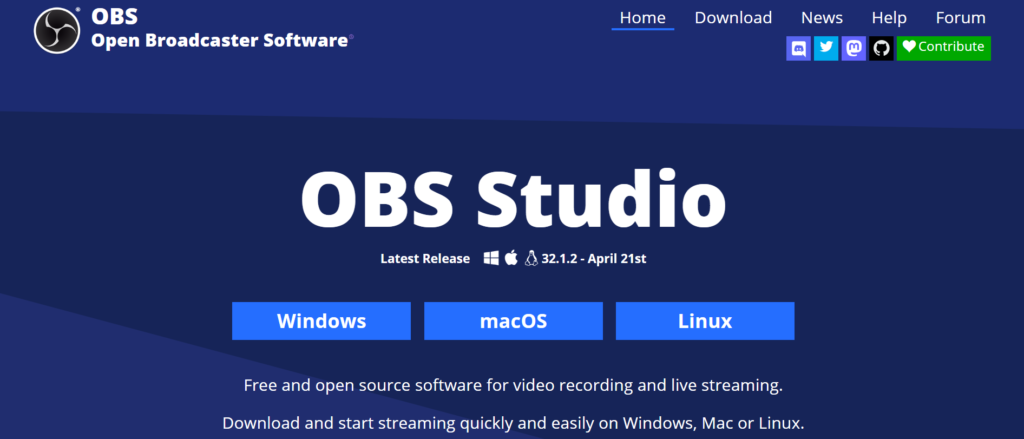
OBS Studio is an industry-leading screen recording and live streaming software designed for creators who demand professional performance. Best of all, it’s completely free, open-source, and packed with powerful recording features.
I have been using this tool to create online tutorial videos for my clients since 2022. It is truly exceptional due to its ability to capture the entire screen or a specific area with just one click and its excellent sound quality.
Additionally, it supports webcams and various audio sources with high-quality performance.
Its unlimited recording capabilities and advanced features make it suitable for a wide range of tasks, from online tutorials to live streaming.
Advantages:
- Completely free, open-source usage without watermarks.
- Delivers high-quality Full HD and 4K recordings without time limits.
- Supports multiple recording sources, live streaming, and advanced audio mixing.
- Powerful customization options for advanced users.
- Cross-platform compatibility, regular updates, and a large community make it a reliable choice for creators.
Disadvantages:
- ‘Advanced settings’ can be confusing for new users.
- It does not have any video editing features.
Pricing:
- Free (100% free and open-source)
Who Should Use OBS Studio?
OBS Studio is an excellent choice for those who need powerful, free screen recording and live-streaming software. It is particularly suitable for users who want greater control over their recordings without any subscription fees.
OBS Studio is best for:
- Content creators (YouTube video tutorials)
- Online course creators
- Gamers
- Freelancers
- Live streamers
- one broadcast
- Teachers and trainers
- Tech reviewers
2. Camtasia
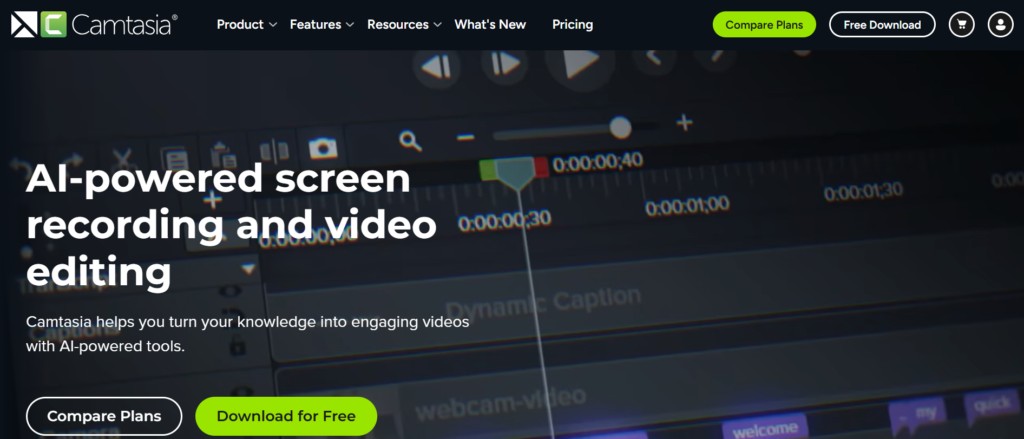
Camtasia is a powerful screen recording platform built for seamless video creation and editing. With built-in editing tools and high-quality recording, it’s ideal for tutorials, presentations, and online courses.
From recording your screen to producing a finished video, Camtasia handles every step in one application. Its easy-to-use editing tools let you add animations, callouts, captions, and other professional touches with ease.
Advantages
- Powerful screen recorder with an integrated video editor for a seamless workflow.
- Rich editing features including drag-and-drop controls, animations, callouts, and cursor highlighting.
- Includes royalty-free assets, professional export options, and direct YouTube publishing.
- User-friendly design backed by regular improvements and helpful support.
Disadvantages
- Subscription or license cost is higher than many competitors.
- Large projects can be demanding on system resources.
Pricing
- Free plan available with limited features.
- Paid plans unlock advanced recording, editing, and premium tools.
Who Should Use Camtasia?
Camtasia is an excellent choice—especially for beginners—thanks to its ease of screen recording and built-in video editing capabilities.
It is highly effective for those who wish to create professional-quality tutorials, educational videos, and software demonstrations without relying on separate video editing tools.
Camtasia is best for:
- Content creators (YouTube video tutorials)
- Online course creators
- Freelancers
- Teachers and trainers
- Business professionals
- Software reviewers
- Marketing teams
3. Loom
Loom simplifies screen recording with an intuitive interface and powerful sharing features. Record high-quality videos in just a few clicks and let Loom automatically upload them to the cloud for easy access.
Millions of users rely on Loom to create tutorials, presentations, and instructional videos with ease. Its fast recording and instant sharing features make it an excellent choice for everyday communication.
Advantages
- One-click recording designed for beginners and professionals alike.
- AI-powered features include automatic captions, transcriptions, and video summaries.
- Instant cloud sharing, secure video protection, and detailed viewer insights.
- Built-in editing tools and cloud storage help speed up content creation.
- Works smoothly on Windows, macOS, and browser-based platforms.
Disadvantages
- Video editing tools are relatively basic for advanced creators.
- The free plan has limits on recording features, storage, and sharing options.
Pricing
- Free plan available for beginners and casual users.
- Premium plans unlock advanced recording, sharing, and productivity features.
Who Should Use Loom?
‘Loom’ is a simple and suitable tool for those who wish to explain an idea or communicate with others without organizing a live meeting, and want to quickly share videos by easily recording their screen, webcam, and voice.
Loom is best for:
- Content creators (YouTube video tutorials)
- Online course creators
- Freelancers
- Remote teams
- Business professionals
- Teachers and trainers
- Customer support teams
4. Bandicam
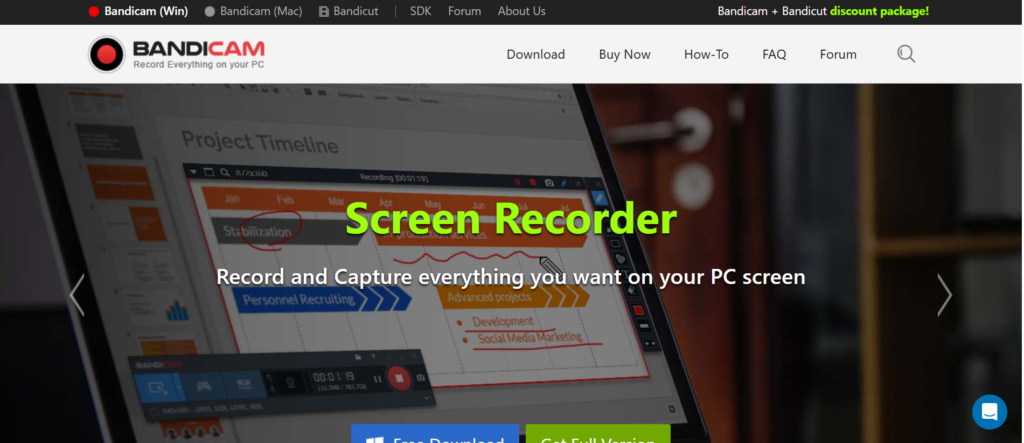
Bandicam is a feature-rich screen recorder that delivers high-quality video capture with exceptional efficiency. From online tutorials to gameplay and presentations, it records everything smoothly while keeping system usage low.
Whether you’re recording coding sessions, webinars, or software tutorials, Bandicam provides smooth, high-resolution recording with low resource usage. Its built-in webcam overlay, annotation tools, and hardware acceleration help you create polished videos with ease.
Advantages
- Professional-quality recording with Full HD, 4K UHD, and advanced video compression.
- Screen, webcam, custom area, and game recording modes provide maximum flexibility.
- Interactive annotation tools and mouse click effects improve viewer engagement.
- Efficient hardware acceleration provides smooth recording while conserving system resources.
- Reliable, easy to use, and well-suited for educators, gamers, and content creators.
Disadvantages
- You’ll need the paid version to remove the watermark from recordings.
- Users requiring advanced editing will need dedicated video editing software.
Pricing
- Try the free version before upgrading.
- Paid plans remove the watermark and include all premium recording tools.
Who Should Use Bandicam?
Bandicam is a strong choice for those seeking lightweight and easy-to-use screen recording software to capture gameplay or desktop activities. This is highly massive for users who want to create high-quality recordings with minimal impact on system performance.
Bandicam is best for:
- Content creators (YouTube video tutorials)
- Online course creators
- Gamers & Freelancers
- Teachers and trainers
- Software reviewers
- Business professionals
5. Screen Studio
Screen Studio is an innovative macOS screen recorder that brings a professional touch to every recording. With automatic zooms, camera motion, cursor highlights, and stylish animations, it helps creators produce engaging tutorial videos without complex editing.
Creators love Screen Studio because it transforms ordinary recordings into polished videos with minimal effort. Its clean workflow and intelligent enhancements make professional video production faster than ever.
Advantages
- Automatically applies cinematic animations, zoom effects, and cursor highlights to every recording.
- High-resolution Retina recording and webcam support deliver premium video quality.
- Modern interface with simple editing tools speeds up content creation.
- Saves editing time while producing polished, professional-looking tutorial videos.
Disadvantages
- Platform support is mainly limited to macOS devices.
- Premium pricing may not be ideal for occasional or first-time users.
Pricing
- Free trial available for new users.
- Paid subscription includes all recording, editing, and export features.
Who Should Use Screen Studio?
‘Screen Studio‘ is a primary choice for those who want to create polished and flawless screen recordings. It is highly impactful for users who prioritize smooth cursor movement, automatic zoom effects, and engaging presentations.
Screen Studio is best for:
- Content creators (YouTube video tutorials)
- Online course creators
- Freelancers
- SaaS founders
- Product designers
- Marketing teams
- Educators and trainers
6. ScreenPal
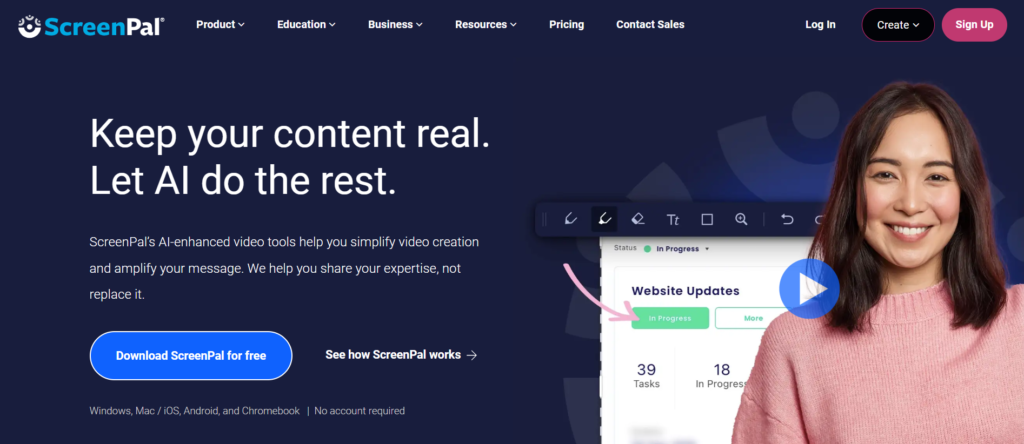
ScreenPal is a complete video creation solution that allows you to record, edit, enhance, and share videos from one dashboard. It includes screen recording, webcam capture, AI-powered captions, cloud hosting, and a rich library of stock media.
From educational content to workplace presentations, ScreenPal simplifies the entire video creation process. AI-powered tools and secure cloud sharing ensure a smooth and productive workflow.
Advantages
- Record your screen and webcam while editing videos in one application.
- AI captions, annotations, and video editing tools enhance tutorials.
- Includes cloud storage, stock media, and interactive learning features.
- Excellent value for beginners, teachers, and creators.
Disadvantages
- Not ideal for complex video editing or professional post-production.
- The free version has restrictions on editing features and cloud services.
Pricing
- Free plan available for basic screen recording.
- Budget-friendly premium plans provide access to all advanced features.
Who Should Use ScreenPal?
ScreenPal can be an effective choice for simplifying screen recording and video creation. Its user-friendly approach enables new users to record their screen and webcam—and edit videos as needed—without complex setup.
ScreenPal is best for:
- Content creators (YouTube video tutorials)
- Online course creators
- Freelancers
- Teachers and trainers
- Business professionals
- Software reviewers
7. Snagit
Snagit is designed for users who want to create high-quality tutorials without a complicated workflow. Combining screen recording with advanced screenshot editing, it simplifies every step of content creation.
Whether you’re creating tutorials or software demonstrations, Snagit keeps the workflow simple and efficient. Record your screen and audio, make quick edits, and enhance every video with arrows, callouts, text, and visual annotations.
Advantages
- Screen, webcam, and audio recording in one application.
- Includes comprehensive annotation tools, scrolling screenshots, and animated GIF creation.
- Offers cloud sharing, cross-platform compatibility, and a streamlined editing workflow.
- Fast, simple, and great for professional tutorials
Disadvantages
- Not ideal for creators who need professional timeline editing and advanced effects.
- Provides fewer creative animation tools than Camtasia.
Pricing
- Start with a free trial to evaluate the software.
- Upgrade to the paid version for the complete feature set.
Who Should Use Snagit?
For those seeking a way to take screenshots or record their screens without using complex software—whether they are beginners or professionals—’Snagit‘ is an excellent option.
Snagit is best for:
- Content creators (YouTube video tutorials)
- Online course creators
- Freelancers
- Business professionals
- Software reviewers
8. Descript
Descript simplifies content creation by combining screen recording, AI transcription, and professional editing tools in one platform. Its intuitive text-based editor dramatically reduces the time required to produce polished videos.
Creating high-quality tutorials is faster with Descript’s AI-powered editing tools. Screen recording, automatic transcription, subtitles, noise removal, and audio enhancement work together to deliver polished videos with minimal effort.
Advantages
- AI-powered recording with automatic subtitles, transcription, and webcam support.
- Edit videos through text, enhance audio, and remove background noise effortlessly.
- Multi-track editing and collaboration features boost productivity.
- Great for tutorials, training videos, interviews, and podcasts.
Disadvantages
- Some AI features require paid plans
- Requires an internet connection for certain tools
Pricing
- Get started for free with core recording and editing tools.
- Paid subscriptions unlock premium AI features and additional project limits.
Who Should Use Descript?
Descript is a text-based video editing and screen recording software that allows users to easily edit recordings and create professional-quality screen videos.
Descript is best for:
- Content creators (YouTube video tutorials)
- Online course creators
- Freelancers
- Podcasters
- Marketing teams
9. Clipchamp
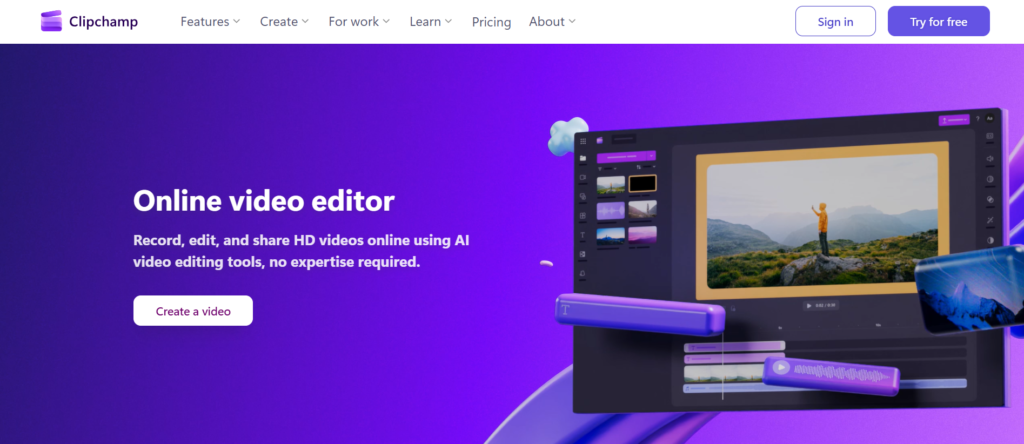
Built by Microsoft, Clipchamp makes creating high-quality videos simple for beginners and professionals alike. Screen recording, video editing, stock media, transitions, and one-click exporting are all integrated into an easy-to-use workspace.
Many Windows users already have Clipchamp installed, making it one of the easiest ways to start recording tutorials. Just open the app and begin creating.
Advantages
- Professional screen and webcam recording with easy-to-use editing features.
- Built-in templates, stock library, automatic captions, and AI voice tools simplify content creation.
- Cloud workflow and social media export make sharing fast and convenient.
- Beginner-friendly design with a free plan available.
Disadvantages
- Not ideal for advanced video editing workflows.
- Some templates and creative assets are locked behind a subscription.
Pricing
- Basic features are available at no cost.
- Premium upgrades offer more creative tools and higher export limits.
Who Should Use Clipchamp?
If you want to create videos by recording your screen or webcam, you can try using Clipchamp. Its simple and user-friendly interface helps beginners get started with recording and editing videos.
Clipchamp is best for:
- Content creators (YouTube video tutorials)
- Online course creators
- Freelancers
- Students and teacher
- Business professionals
- Social media marketers
Free vs. Paid Screen Recording Software
Choosing the best screen recording software begins with knowing your budget, skill level, and what you want to create.
If you’re new to screen recording, free options like OBS Studio offer everything you need to make high-quality videos. For more complex editing, AI features, and better resources, you might want extra software.
Paid screen recorders have better editing tools, AI features, and quicker export times. They simplify the process of creating polished tutorials.
Free tools are ideal for learning and making your first tutorials. Premium software allows you to create more refined videos with less effort.
Tips for Creating Professional Online Tutorial Videos
Outstanding tutorial videos are built on careful preparation, clear communication, and attention to detail.
Combine these best practices with reliable screen recording software to create professional, engaging content that’s easy to follow and keeps viewers engaged.
- Plan Your Content: Start with a clear outline to keep your tutorial structured, organized, and easy to present.
- Record in a Quiet Environment: Select a quiet location and pair it with a reliable microphone to produce clear, high-quality audio for every tutorial.
- Record in High Resolution: Capture your screen in 1080p or higher for sharp visuals and easy-to-read content.
- Keep Your Workspace Clean: A clean desktop creates a more professional and distraction-free presentation.
- Speak Clearly and at a Steady Pace: Explain each step slowly and clearly to make your tutorial easy to understand.
- Highlight Important Actions: Guide viewers with cursor highlights, annotations, and zoom effects to ensure every important step is easy to follow.
- Edit Before Publishing: Refine your video by trimming mistakes, improving audio, and adding captions. Small edits can significantly improve the final quality.
- Maintain Consistent Branding: Use a consistent visual identity across all your videos, including fonts, colors, thumbnails, intros, and outros. Strong branding builds credibility and helps your audience recognize your content instantly
Most Common Asked Questions
What is the best free screen recording software?
The best free screen recording software is OBS Studio. It combines professional recording quality, unlimited recording, extensive customization, and support for Windows, macOS, and Linux in a completely free package.
Which screen recorder is best for beginners?
Loom, Clipchamp, and ScreenPal are also excellent choices for beginners. Their simple interfaces and easy recording process allow new users to create high-quality tutorial videos with very little learning curve.
Can I record my screen and webcam at the same time?
Yes. Today’s screen recording software makes it easy to record your screen, webcam, microphone, and system audio together. Many popular tools include this feature for creating engaging tutorial videos
Which software is best for creating YouTube tutorials?
Camtasia is perfect for YouTube tutorials, offering professional recording, editing, and export tools in one platform. OBS Studio is a great free choice for recording high-quality videos.
Does screen recording software affect computer performance?
Yes. Screen recording uses your computer’s CPU, GPU, and memory. Recording at higher resolutions, such as 4K, requires more system resources. Choosing optimized software and closing unnecessary applications can improve recording performance.
What video format is best for online tutorials?
MP4 is the most popular format for online tutorial videos because it balances quality, file size, and compatibility. It’s supported by YouTube, learning platforms, social media, and nearly all modern devices.
Is OBS Studio better than Camtasia?
The better choice depends on your workflow. OBS Studio excels at free recording and streaming, whereas Camtasia offers an all-in-one solution with powerful editing tools.
Can I edit videos with screen recording software?
Yes. Many screen recording applications include built-in editing tools. Camtasia, ScreenPal, Descript, Snagit, and Clipchamp allow you to trim videos, add annotations, transitions, captions, effects, and other enhancements without using separate editing software.