
The 7+ Best Video Editing Software in 2026 (Mac & PC)

Choosing the best video editing software in 2026 can be tough. With AI tools, fast performance, and endless “pro-level” promises, finding the right fit matters more than ever.
Whether you’re a YouTuber, filmmaker, business owner, or beginner, the right editor can turn simple footage into stunning, professional-quality videos.
This guide breaks down the best video editing software for Mac and PC—covering features, pricing, and who each tool is best for—so you can choose the perfect editor for smoother workflows and standout videos in 2026.
My Top 3 Best Video Editing Software Recommendations:
Top Choise For Windows
Best For Mac
Best For Overall
What Makes Great Video Editing Software in 2026?
Video editing has reached a new level in 2026, with creators seeking:
- AI-assisted editing (auto captions, auto cuts, smart tracking)
- Easy templates for Reels, Shorts & TikTok
- Multi-device compatibility
- 4K, 8K, and HDR support
- Fast rendering times
- Cloud collaboration
- Seamless integration with YouTube, Adobe, or Apple ecosystems
Modern video editors integrate efficiency, creativity, and AI-powered automation, allowing more focus on storytelling and less on manual work.
1. Adobe Premiere Pro CC
Industry-leading video editing software for professionals.
overview
Adobe Premiere Pro is the industry-leading Top-tire Premium video editing software of 2026, trusted worldwide for filmmaking, broadcast, YouTube content, and agency work. It provides full end-to-end control for professionals through seamless integration with After Effects, Audition, Photoshop, and Creative Cloud.
With Firefly AI, advanced collaboration, and optimized performance, Premiere Pro is the top choice for creators for fast, smart, and professional-grade editing.
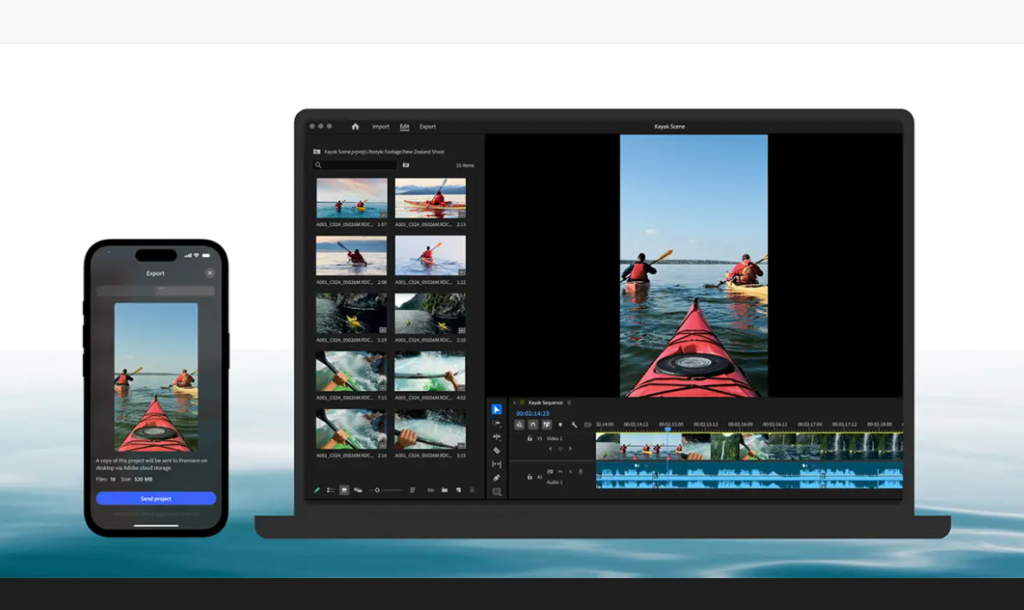
Key features Of Adobe:
- Advanced Video Editing: Advanced timeline editing with multi-cam editing, precision cutting, and flexible workflows.
- Frame-accurate trimming, multicam editing, proxies, and robust sequence management for longform projects.
- AI-powered features: Firefly Generative Extend, Footage Search, and Auto Captions make translation easy—making editing faster and smarter.
- Seamless Integration – Works smoothly with After Effects, Audition, Photoshop, and Adobe Creative Cloud.
- Professional Color Grading – Lumetri Color tools for HDR, 4K/8K color correction, and cinematic visuals.
- High-Performance Rendering – Optimized for Intel, AMD, and Windows-on-ARM devices for fast exports and GPU-accelerated effects.
💻System requirements of Adobe
- RAM: 8 GB minimum (16 GB recommended for HD; 32 GB+ for 4K & higher workflows).
- GPU: Requires a dedicated GPU with at least 2GB of VRAM; 8GB of VRAM is optimal for powerful effects and 4K output.
- Storage: Fast internal SSD recommended for app and cache; additional high-speed drives for media.
- Operating System (OS): Windows 10 or 11, 64-bit, MacOS 12.0 or later
✅Pros Of Adobe:
- Top-tier connectivity to After Effects, Audition, and the Adobe ecosystem
- Rapid AI adoption and frequent feature updates through Firefly integration.
- Proxy, multicam and longform editing, and powerful audio mixing support.
- Powerful and flexible editing flow with professional tools and plugin support.
- Cross-platform collaboration via Adobe Creative Cloud.
❌Cons Of Adobe:
- Slight learning curve and subscription, yet beginner-friendly with tutorials and AI tools.
- High hardware demands for 4K/8K editing
Pricing
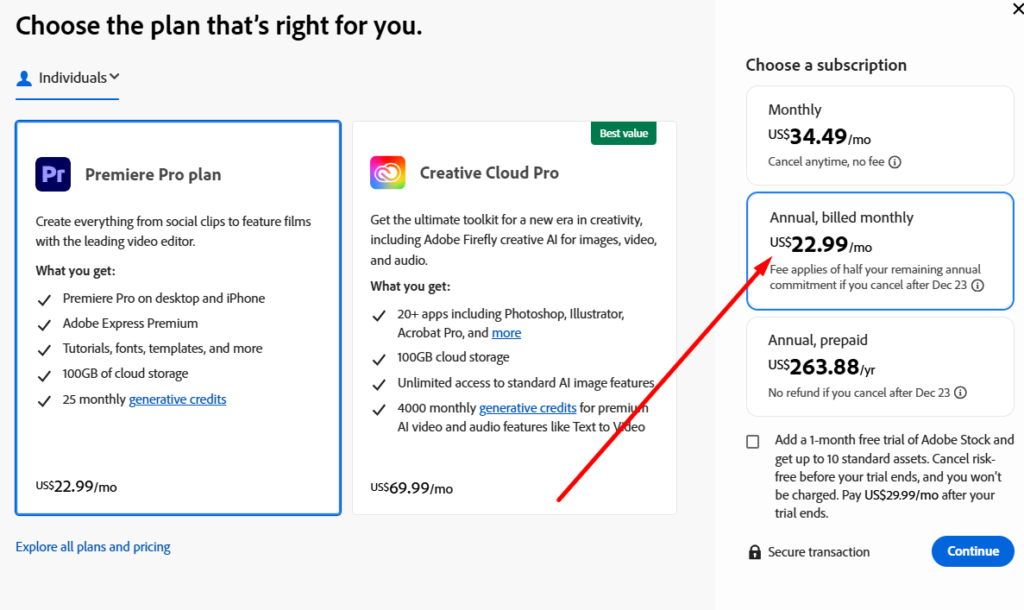
$22.99/month (or included in Adobe Creative Cloud)
Who should use Premiere Pro?
- Both professionals and beginners can create industry-standard, pro-level videos with seamless After Effects and Photoshop integration.
- YouTubers & social media creators needing fast, AI-powered tools and polished output.
- Teams & collaborators who want shared workflows, cloud storage, and seamless integration with Adobe apps.
2. Final Cut Pro
Best for Mac Users
Overview
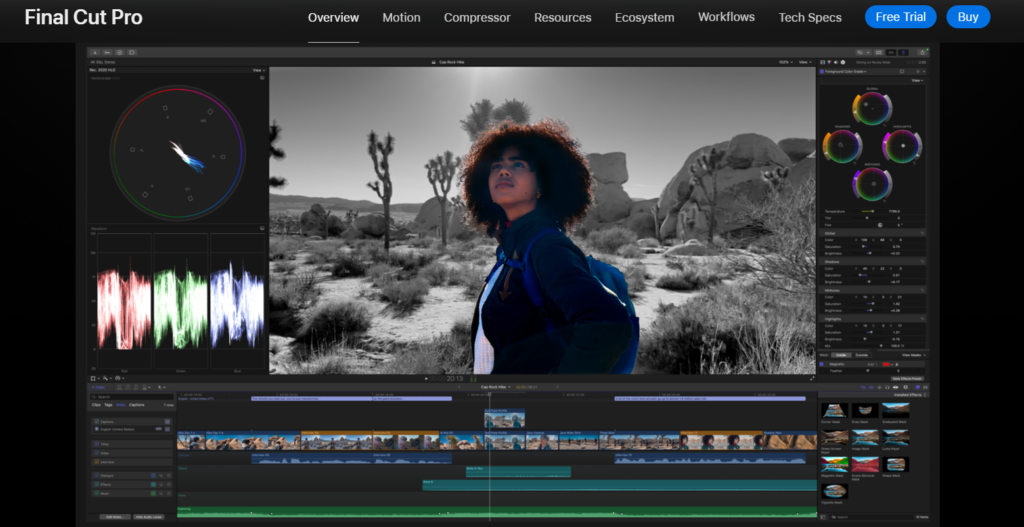
Final Cut Pro is the fastest and smartest video editor for Mac. With a magnetic timeline, lightning-fast rendering, and Apple Silicon-based optimizations, it’s nearly unbeatable in performance.
Combining professional tools, powerful media management, and a clean, intuitive interface, it’s the perfect choice for all types of editing—from YouTube videos to full-length films.
Key Features Of Final Cut Pro:
- Magnetic Timeline & Smart Media Organization — Moving, trimming, or rearranging clips all happens smoothly, and smart libraries and metadata keep your footage perfectly organized, even in large projects.
- Multicam & 360° / ProRes / RAW Support — Edit multi-camera projects (up to 64 angles), 360° video, RAW and ProRes footage smoothly.
- Advanced Color Grading & HDR Support — Advanced color controls—including color wheels, curves, lighting, and HDR/Dolby Vision output—help you easily create cinematic grading and film-quality visuals.
- Built-in Audio Editing & Noise Reduction — Advanced voice isolation, multi-track audio control, and hassle-free auto-syncing of video and audio.
- Optimized Performance on Mac / Apple Silicon — Metal Engine and Apple Silicon optimization—super-fast edit, render, and export performance.
💻 System Requirements For Final Cut Pro
- Processor: Any Apple Silicon (M-series) Mac.
- macOS Operating System: 14.6 (or later)
- RAM: 8 GB minimum (16 GB recommended for heavy editing, 360°/4K/RAW)
- Metal-capable graphics (all Apple silicon Macs qualify)
- Storage: At least 7-8 GB free to install; fast SSD & enough space recommended for
✅ Pros:
- Blends professional power with a clean, intuitive interface for fast, high-end editing.
- Excellent Mac performance and lasting stability, with Apple Silicon support — perfect for heavy video projects.
- Great for color grading, 4K/360°/RAW workflow, and high-end video production.
- Media organization, multi-cam, audio, and effects tools—all on one platform.
❌ Cons:
- Mac-only — Windows and Linux users cannot use it..
- High one-time cost — $299.99 may be steep for hobbyists.
Pricing:
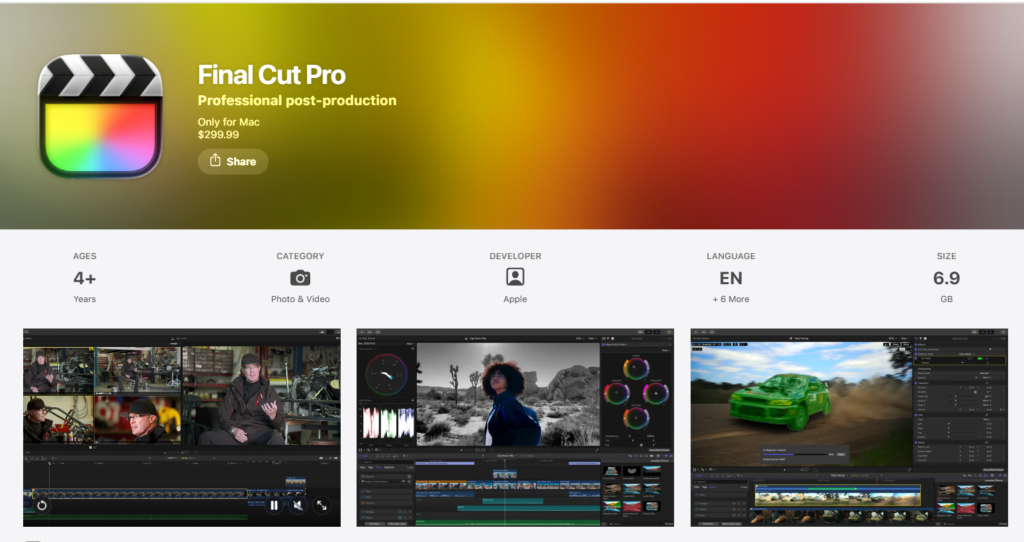
One-time cost: $299.99 — enjoy all future updates without any subscription.
Apple provides a free 90-day trial, letting you explore all features before making a purchase.
Who Should Use Final Cut Pro?
- Mac users seeking a professional, all-in-one video editing solution.
- YouTubers, Filmmakers, content creators producing high-quality videos, documentaries, or cinematic content.
- Editors working with RAW/ProRes/4K/360° footage, needing powerful color grading and export capabilities.
- Freelancers or professionals who want fast rendering, efficient workflows, and long-term value without subscription fees.
3. DaVinci Resolve
Best Free & Pro-Grade Editor
Overview
DaVinci Resolve is an Elite-level video editing, visual effects, color grading, and audio post-production software available for Windows, Mac, and Linux.
It combines non-linear editing, world-class color grading, powerful Fairlight audio, and Fusion-based advanced VFX on one platform.
Known for multi-cam editing, HDR support, and AI-powered smart tools, Resolve is new and professional—suitable for everyone.
The free version includes pro features, while the Studio version offers advanced effects, team workflows, and 4K/8K support. Its smooth editing flow makes it ideal for filmmakers, YouTubers, and professional editors.
Key features Of DaVinci Resolve:
- Professional Editing Tools: Non-linear Track-based editing, multi-cam support, timeline-based trimming, Proxy Workflows and advanced transitions.
- Color Grading & Correction: The industry-leading color toolset with HDR, LUTs, curves, and advanced grading tools– used in feature films and commercials.
- Fusion Visual Effects & Motion Graphics: Node-based visual effects, compositing, titles, and motion graphics all built on the same platform.
- Fairlight Audio Post-Production: Professional voice cleanup, original track editing, noise reduction, and full audio mixing for broadcast-quality audio.
The free version offers professional editing, color grading, Fairlight audio, Fusion VFX, and multi-cam support.
System requirements Of DaVinci Resolve
- Operating System(OS): Windows 10/11 (64-bit), macOS 10.15 Catalina or later, Linux (CentOS 7.3+)
- RAM: 16 GB minimum (32 GB+ recommended for 4K/8K projects)
- GPU: 2 GB VRAM minimum (8+ GB recommended for GPU-intensive tasks), Metal-capable GPU for Mac
- Storage: Fast SSD recommended for software and cache; additional high-speed drives for mede.
✅Pros:
- Powerful free version with professional-grade editing tools for all levels.
- Excellent value for money (Studio is one-time).
- Industry-leading color correction and grading capabilities..
- AI-powered tools like facial recognition and smart reframing.
- Cross-platform: works on Windows, Mac, and Linux.
❌ Cons:
- Learning curve for Fusion and advanced grading nodes.
- Some Windows systems need careful GPU/driver setup to get best performance.
Pricing
DaVinci Resolve Studio is a one-time purchase (~$295) that unlocks advanced features and multi-GPU support for heavy workflows.
Who should use DaVinci Resolve?
- Editors seeking studio-quality color grading and advanced VFX/compositing all within a single app.
- Creators who prefer a one-time purchase (Studio) rather than ongoing subscriptions.
- Teams who want an integrated editing–grading–audio pipeline.
Try DaVinci Resolve Free Trial
4. WonderShare Filmora
Best for Beginners & Casual Creators
Overview.
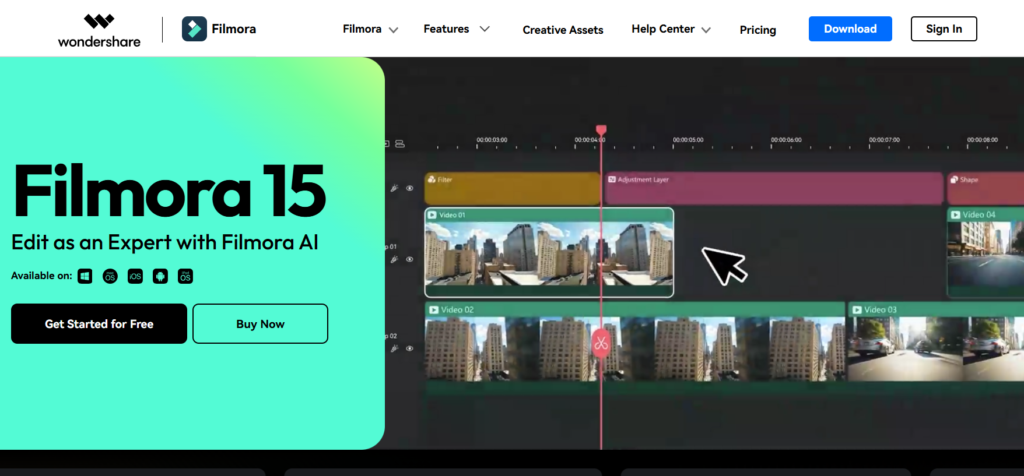
Wondershare Filmora is a beginner-friendly, lightweight powerful video editing software Made for YouTubers, content creators, and businesses—who want professional-quality videos without the hassle. With drag-and-drop, AI tools, and fast rendering, Filmora helps you easily create professional videos—ideal for social media and marketing content.
Key Features Of Filmora:
- Powerful AI Editing Tools: Filmora’s AI tools—Smart Cutout, Background Removal, Audio Denoise, and Auto Beat Sync—automate complex edits, providing a faster, smarter workflow.
- Large Effects & Templates Library: With thousands of transitions, filters, titles, speed-ramps, and presets, users can easily create cinematic videos.
- Multi-Platform Support: Filmora works on Windows, macOS, iOS, and Android, allowing you to start editing on one device and continue on another.
- Fast & Advanced Editing Workflow: : Filmora combines drag-and-drop editing, GPU acceleration, 4K support, and advanced tools like keyframing, motion tracking, and chroma key for smooth, powerful editing.
System Requirements(Mac & Windows)
- Operating System(OS): Windows 10/11 (64-bit), macOS 10.15 or later
- CPU: Intel i3 or better; Intel i7 or AMD Ryzen recommended, Intel i5 / Apple M1 & M2 supported
- RAM: Minimum 8GB; 16GB for 4K editing work
- GPU: Intel HD integrated graphics or dedicated GPU for best performance
- Storage: 10GB free space
✅Pros:
- Extremely Beginner-friendly interface with a fast learning curve.
- Large template and effects library, ready for social and YouTube export.
- Affordable for creating engaging videos quickly, budget-friendly compared to Premiere Pro.
- Powerful AI tools that automate time-consuming edits.
❌Cons:
- Not ideal for heavy VFX or complex cinema-level color workflows.
- Free tier exports include a watermark; full functionality requires paying.
Filmora Pricing:
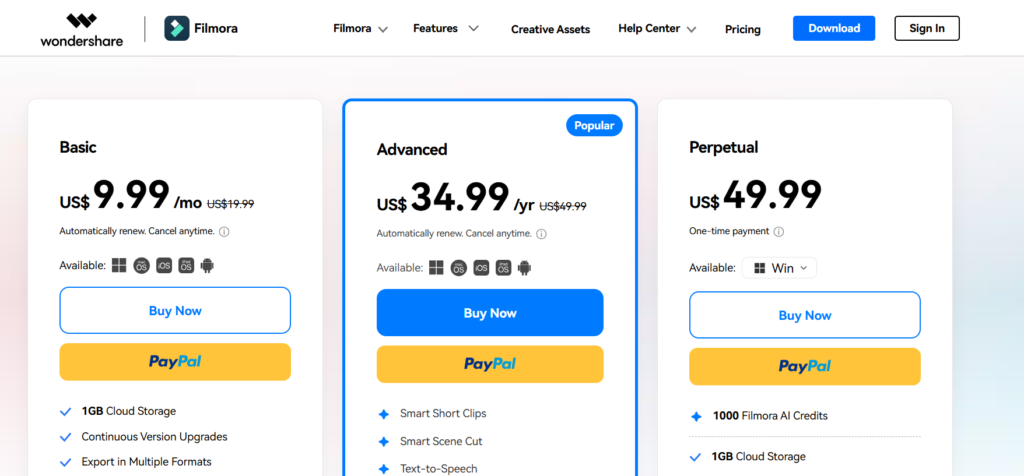
- Filmora offers a free tier with watermarked exports
- One-time License: USD 79.99–89.99 — for lifetime use (Limited updates your version)
Who Should Use Filmora?
Wondershare Filmora is the best suited for:
- New creators learning video editing
- YouTubers and vloggers
- Small businesses creating ads and social content
- Influencers making reels, shorts, and quick promotional videos
- Anyone who wants professional-looking videos without mastering complex software
5. CyberLink PowerDirector
Best for Fast Editing
Overview
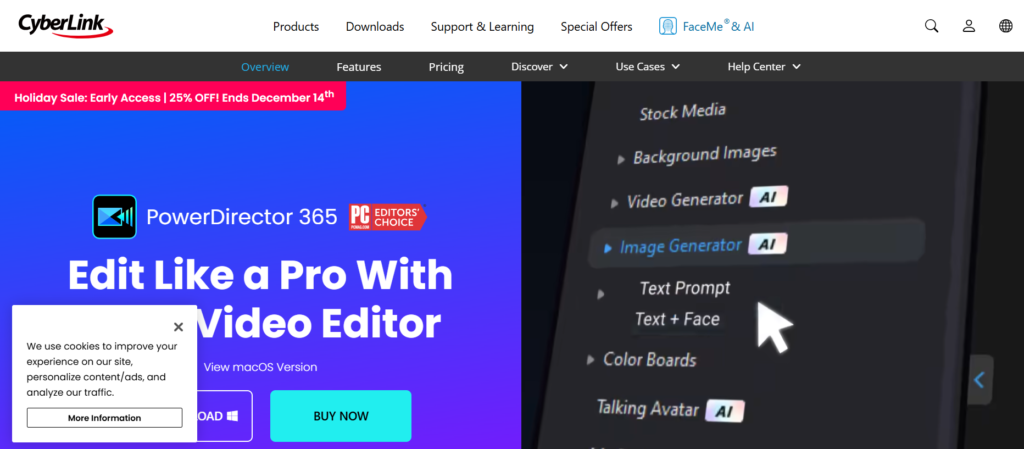
CyberLink PowerDirector is a powerful, super-fast video editing software for Windows, ideal for new and intermediate users with AI tools, templates, and a clean UI. It’s perfect for creators wanting powerful editing tools—from basic edits to advanced effects—without steep learning curves.
PowerDirector offers everything from basic edits to AI tools, motion tracking, and 360° video—making it ideal for YouTubers, creators, marketers, and small studios.
Key Features Of PowerDirector:
- AI‑powered tools — including AI object detection & cutout, motion tracking, and scene detection to automate time‑consuming tasks.” & “Automated video generation, enhancement, and advanced AI Voice Translator with Lip Sync.
- Advanced Creative Controls: LUTs-based advanced color correction, 360°/VR video work, shot stabilization, and a rich collection of transitions, templates, filters, and effects for creating cinematic looks.
- Fast, Intuitive Editing Workflow: A beginner-friendly drag-and-drop interface backed by hardware-accelerated rendering, wide 4K/HD/VR format support, and access to millions of royalty-free media assets.
- Broad Format & Export Flexibility: Fast export to social platforms with support for 4K/HD, VR, and all popular video-audio formats.
🖥️ System Requirements (Windows)
- Operating System(OS): Windows 10 or 11 (64-bit)
- CPU: Intel Core i-series / AMD Ryzen (i5/i7 or higher recommended for AI/4K editing)
- RAM: Minimum 8 GB (16 GB+ recommended for heavy projects)
- GPU: Dedicated GPU with 2 GB+ VRAM for advanced effects
- Storage & Display: At least 10GB free disk space, 1024×768 resolution or higher
⚠️ Note: PowerDirector is primarily Windows‑only. It does not officially support macOS.
✅Pros:
- Easy-to-understand UI, so beginners and intermediate users can learn quickly.
- Advanced features (AI, tracking, 360°) bring an equally effective balance to all levels of editing.
- Rich effects, templates, and format support help you quickly create professional-looking videos.
❌Cons:
- Only Windows support — not suitable for macOS system
💵 Pricing:
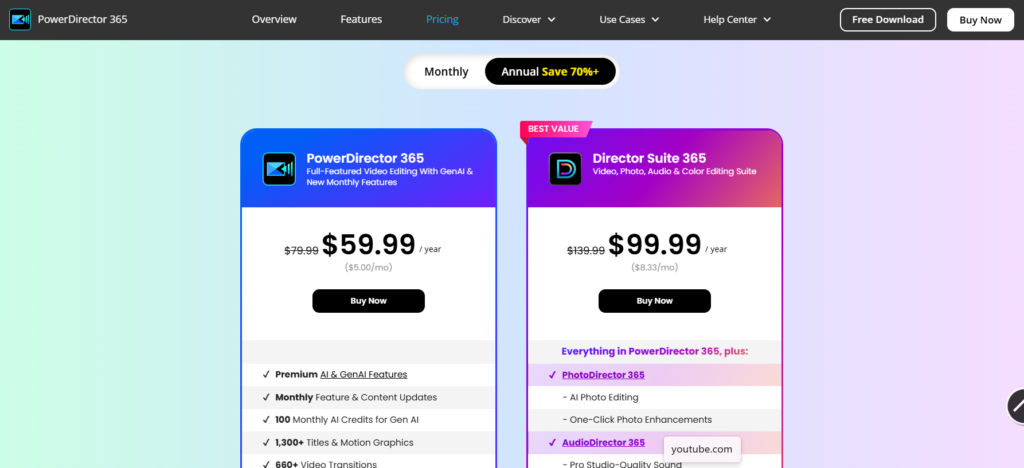
- PowerDirector 365: Only USD 59.99/year for full features.
- Ultimate License: USD 139.99 one-time — includes extra effects & plugins.
🎯 Who Should Use It?
PowerDirector is best suited for:
- YouTubers, vloggers, and social‑media creators who want solid editing tools without a steep learning curve.
- Small businesses or marketers making ads, promos, tutorials.
- Creators working on 360°/VR content or those using motion tracking, special effects, or graphic animations.
- Anyone using Windows who wants a flexible, budget‑friendly editor with both ease and power.
6. Corel VideoStudio Pro
best standalone video editing software
Overview
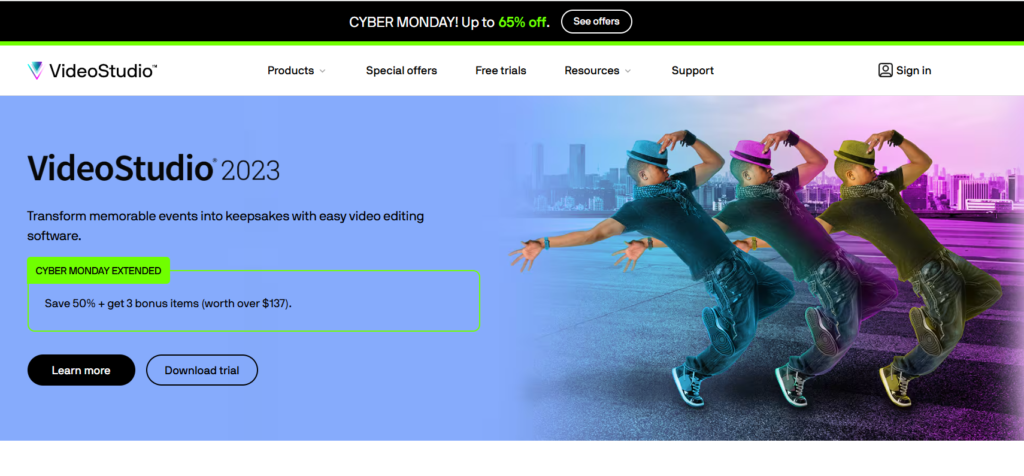
Corel VideoStudio Pro is one of the best standalone video editing software, easy to use and suitable for new and intermediate editors.
With an intuitive timeline, powerful effects, and templates, it helps you quickly and easily create polished videos for YouTube and social media.
Key Features Of Corel:
- Intuitive Timeline Video Editing: Editing HD and 4K videos with multiple layers is very easy in a simple drag-and-drop layout.
- Screen Recording & Multicam Editor: Record screen and webcam simultaneously and easily sync footage from up to 4 cameras.
- Chroma Key & Masking Tools(Ultimate): Remove backgrounds, apply green screens with simple drag-and-drop, use masks and cinema-color grading.
- Dynamic Video Effects & Graphics: Rich library of effects, titles, transitions, AR stickers, and customizable graphics for engaging storytelling.
System Requirements (Windows)
- Operating System(OS): Windows 10 or 11 (64-bit)
- CPU: Intel Core i3 or AMD equivalent (i5/i7 recommended for 4K)
- RAM: 4GB (8GB recommended; 16GB for 4K)
- GPU: DirectX 10 or higher
- Storage: At least 6GB free space
Note: Corel VideoStudio Pro works on Windows only and can not be used on macOS.
✅Pros:
- Excellent beginner-friendly timeline with motion and mask features.
- Excellent templates and effects for quick editing.
- Good performance for YouTube and home video projects.
❌Cons:
- Not as advanced as Premiere for pro or DaVinci Resolve editing.
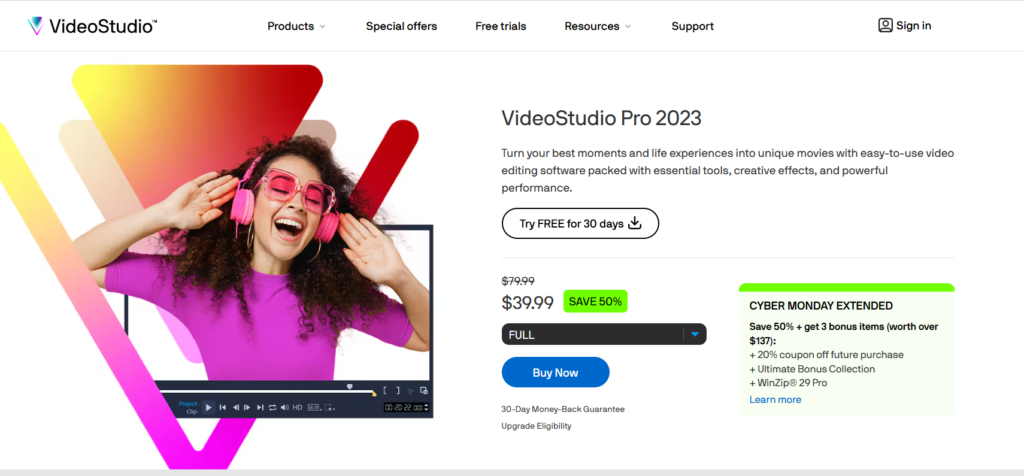
Corel videostudio Pro Pricing:
Who Should Use It?
Corel VideoStudio Pro is ideal for:
- Beginners who want an easy editing experience.
- YouTubers create tutorials, reviews, intros, and vlogs.
- Family or personal video creators (events, travel, slideshows).
7. CapCut Desktop
Best Free AI-Powered Editor
Overview
CapCut Desktop is a free, AI-powered, beginner-friendly video editor designed for creators who want fast editing and great results with minimal learning. It’s the desktop version of the popular CapCut app, offering a smooth workflow for YouTube, TikTok, Reels, and long-form videos.
Key Features Of CapCut:
- AI-Powered Editing: CapCut uses AI for auto captions, background removal, motion tracking, and voiceovers, making editing fast and effortless.
- Multi-Track Editing: Capcut features a drag-and-drop timeline, multiple layers, keyframe animation, green screen, and accurate professional color correction.
- Templates & Assets: With CapCut, you get a free, comprehensive library of transitions, effects, music, video clips, and text templates for effortless creative editing.
- Fast Export & Platform Presets: Optimized export presets for YouTube, TikTok, Instagram, and 4K output without heavy system usage.
System Requirements (macOS & Windows)
- Operating System(OS): Windows 10/11 (64-bit), macOS 11 or later
- RAM: 8GB (16GB recommended)
- CPU: Intel i5 or AMD equivalent, Apple M1/M2/M3 or Intel i5+
- GPU: Integrated or dedicated GPU (NVIDIA/AMD recommended)
- Storage: Minimum 2GB free (SSD recommended)
✅Pros:
- Completely free with powerful features.
- Easy for beginners, fast workflow for creators.
- Excellent AI tools for captions, effects, and cleanup.
- Lightweight performance—works smoothly on mid-range laptops.
❌Cons:
- Not as advanced capabilities as Adobe Premiere Pro or DaVinci Resolve for pro-level color grading.
Pricing:
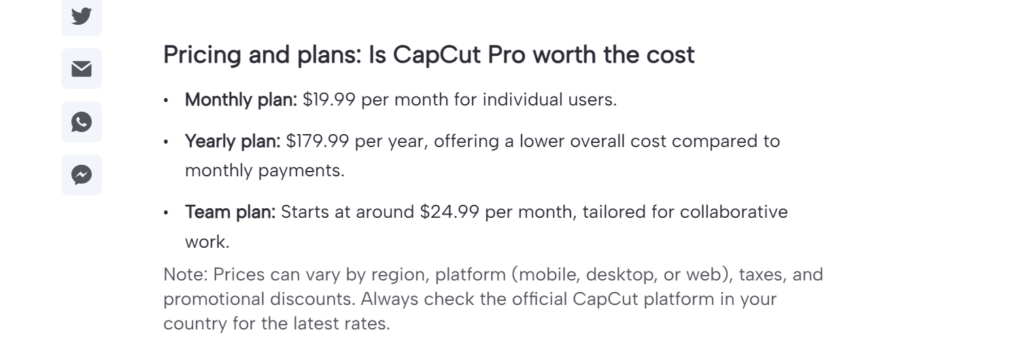
- Capcut desktop Free Plan available with basic tools and limited assets.
- Pro – ~$19.99/month: All premium resources, AI tools, high-quality 4K export, and cloud integration.
Who Should Use Capcut?
CapCut Desktop is perfect for:
- Beginner video editors.
- Content creators on YouTube, TikTok, and other social platforms.
- Anyone needing quick edits, auto-captions, shorts, and templates.
- Freelancers and marketers seeking quick, free, and polished video content.